











Turn off Optoma projector when you leave an area
Other popular Optoma workflows and automations
-
-
-
Turn off Optoma projector at a scheduled time
-
-
Turn off Optoma projector and Philips Hue lights daily
-
-
Turn on Philips Hue lights and Optoma projector when mydlink detects motion
-
-
Turn off Optoma projector every hour at 45 minutes past
-
-
Turn on your Optoma projector when a Homey Flow starts
-
-
Turn off Optoma projector at a set time each day
 5
5
-
-
Turn off Harmony activity and Optoma projector with one tap
-
-
Turn on Optoma projector when you arrive home
4
-







Automate Optoma and OneNote from your AI assistant
Ask Claude to create Optoma applets for your projector, right from your AI assistant, with IFTTT MCP.
Set up IFTTT MCP


Create your own Optoma and OneNote workflow
Create custom workflows effortlessly by selecting triggers, queries, and actions. With IFTTT, it's simple: “If this” trigger happens, “then that” action follows. Streamline tasks and save time with automated workflows that work for you.
7 triggers, queries, and actions
Create a page

Action
An action is the task your Applet carries out after the trigger occurs. It defines what happens as the result of your automation and completes the workflow.
This Action will create a new page in the specified section of the specified notebook.
Create a page from a link
Action
An action is the task your Applet carries out after the trigger occurs. It defines what happens as the result of your automation and completes the workflow.
This Action creates a page from a link in the specified section of the specified notebook.
Create a page with an image
Action
An action is the task your Applet carries out after the trigger occurs. It defines what happens as the result of your automation and completes the workflow.
This Action will create a new page with an image in the specified section of the specified notebook.
Mute/Unmute my projector
Action
An action is the task your Applet carries out after the trigger occurs. It defines what happens as the result of your automation and completes the workflow.
This action will mute/unmute my projector.
Set Volume
Action
An action is the task your Applet carries out after the trigger occurs. It defines what happens as the result of your automation and completes the workflow.
This Action will set the volume value of my projector.
Turn on/off LED light of my projector
Action
An action is the task your Applet carries out after the trigger occurs. It defines what happens as the result of your automation and completes the workflow.
This action will turn on/off the LED light of my projector.
Turn on/off my projector
Action
An action is the task your Applet carries out after the trigger occurs. It defines what happens as the result of your automation and completes the workflow.
This action will turn on/off my projector.
Create a page
Action
An action is the task your Applet carries out after the trigger occurs. It defines what happens as the result of your automation and completes the workflow.
This Action will create a new page in the specified section of the specified notebook.
Create a page from a link
Action
An action is the task your Applet carries out after the trigger occurs. It defines what happens as the result of your automation and completes the workflow.
This Action creates a page from a link in the specified section of the specified notebook.
Create a page with an image
Action
An action is the task your Applet carries out after the trigger occurs. It defines what happens as the result of your automation and completes the workflow.
This Action will create a new page with an image in the specified section of the specified notebook.
Mute/Unmute my projector
Action
An action is the task your Applet carries out after the trigger occurs. It defines what happens as the result of your automation and completes the workflow.
This action will mute/unmute my projector.
Set Volume
Action
An action is the task your Applet carries out after the trigger occurs. It defines what happens as the result of your automation and completes the workflow.
This Action will set the volume value of my projector.
Turn on/off LED light of my projector
Action
An action is the task your Applet carries out after the trigger occurs. It defines what happens as the result of your automation and completes the workflow.
This action will turn on/off the LED light of my projector.
Turn on/off my projector
Action
An action is the task your Applet carries out after the trigger occurs. It defines what happens as the result of your automation and completes the workflow.
This action will turn on/off my projector.
GET STARTED
How to connect to a Optoma automation
Find an Applet using Optoma and OneNote
Find an automation to connect to, or create your own!Connect IFTTT to your accounts
Securely connect the Applet services to your respective accounts.Finalize and customize your Applet
Review trigger and action settings, and click connect. Simple as that!Upgrade your automations with
-

Connect to more Applets
Connect up to 20 automations with Pro, and unlimited automations with Pro+ -
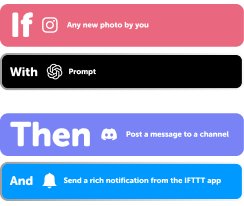
Add multiple actions with exclusive services
Add real-time data and multiple actions for smarter automations -
Get access to faster speeds
Get faster updates and more actions with higher rate limits and quicker checks
More on Optoma and OneNote
About Optoma
Optoma aims to deliver engaging visual and audio experiences for a connected world. Your connected projectors can be automated with other devices to blend seamlessly into your smart home ecosystem.
About OneNote
Microsoft OneNote is a digital notebook that provides a single place for all of your notes and information — everything you need to remember and manage in your life at home, at work, or at school.