











Save new RSS Feed items to Kurator by Optimal Access
Other popular Kurator by Optimal Access workflows and automations
-
 3
3
-
-
Save Reddit posts to Kurator automatically
1
-
-
Save liked post to Kurator with one tap in the IFTTT app
-
-
Save liked X posts to Kurator
-
-
Save New Instagram Photos to Kurator
-
-
Save liked YouTube videos to Kurator
8
-
-
Save your new Facebook photo posts to Kurator
-
-
Save Feedly 'Read Later' articles to Kurator
2
-
-
Save liked YouTube videos to Kurator
-








Automate Kurator by Optimal Access and Lutron Caséta and RA2 Select from your AI assistant
Ask Cursor to create Kurator applets that save your social media likes as organized bookmarks, right from your AI assistant, with IFTTT MCP.
Set up IFTTT MCP


Create your own Kurator by Optimal Access and Lutron Caséta and RA2 Select workflow
Create custom workflows effortlessly by selecting triggers, queries, and actions. With IFTTT, it's simple: “If this” trigger happens, “then that” action follows. Streamline tasks and save time with automated workflows that work for you.
6 triggers, queries, and actions
Activate scene
Action
An action is the task your Applet carries out after the trigger occurs. It defines what happens as the result of your automation and completes the workflow.
This Action will adjust multiple lights and shades together by activating a scene created in the Lutron app.
New like
Action
An action is the task your Applet carries out after the trigger occurs. It defines what happens as the result of your automation and completes the workflow.
This action will save the liked post to Kurator.
Set fan speed
Action
An action is the task your Applet carries out after the trigger occurs. It defines what happens as the result of your automation and completes the workflow.
This Action allows a fan to be set to the desired speed.
Set light level
Action
An action is the task your Applet carries out after the trigger occurs. It defines what happens as the result of your automation and completes the workflow.
This Action will set a Lutron dimmer or switch to the level you specify.
Set shade position
Action
An action is the task your Applet carries out after the trigger occurs. It defines what happens as the result of your automation and completes the workflow.
This Action will set a Lutron shade to the position you specify.
Set shade tilt
Action
An action is the task your Applet carries out after the trigger occurs. It defines what happens as the result of your automation and completes the workflow.
This Action allows shades to be set to the desired tilt.
Activate scene
Action
An action is the task your Applet carries out after the trigger occurs. It defines what happens as the result of your automation and completes the workflow.
This Action will adjust multiple lights and shades together by activating a scene created in the Lutron app.
New like
Action
An action is the task your Applet carries out after the trigger occurs. It defines what happens as the result of your automation and completes the workflow.
This action will save the liked post to Kurator.
Set fan speed
Action
An action is the task your Applet carries out after the trigger occurs. It defines what happens as the result of your automation and completes the workflow.
This Action allows a fan to be set to the desired speed.
Set light level
Action
An action is the task your Applet carries out after the trigger occurs. It defines what happens as the result of your automation and completes the workflow.
This Action will set a Lutron dimmer or switch to the level you specify.
Set shade position
Action
An action is the task your Applet carries out after the trigger occurs. It defines what happens as the result of your automation and completes the workflow.
This Action will set a Lutron shade to the position you specify.
Set shade tilt
Action
An action is the task your Applet carries out after the trigger occurs. It defines what happens as the result of your automation and completes the workflow.
This Action allows shades to be set to the desired tilt.
GET STARTED
How to connect to a Kurator by Optimal Access automation
Find an Applet using Kurator by Optimal Access and Lutron Caséta and RA2 Select
Find an automation to connect to, or create your own!Connect IFTTT to your accounts
Securely connect the Applet services to your respective accounts.Finalize and customize your Applet
Review trigger and action settings, and click connect. Simple as that!Upgrade your automations with
-

Connect to more Applets
Connect up to 20 automations with Pro, and unlimited automations with Pro+ -
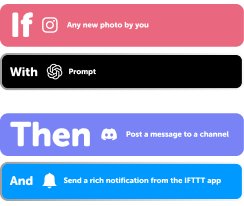
Add multiple actions with exclusive services
Add real-time data and multiple actions for smarter automations -
Get access to faster speeds
Get faster updates and more actions with higher rate limits and quicker checks
More on Kurator by Optimal Access and Lutron Caséta and RA2 Select
About Kurator by Optimal Access
Automatically save your social media likes to the Kurator bookmark manager. Kurator saves the image, description, publisher, author, date, and content tags, and allows you to easily edit, sort, and search (by tag item) all your saved posts per collection. You can then publish this content to your website, newsletter, and social media channels.
About Lutron Caséta and RA2 Select
Lutron Caséta Wireless and RA2 Select allow you to control lights and shades from anywhere.