








Explore Plans

MagicHue to TRIGGERcmd integrations

When you run a command on TRIGGERcmd, IFTTT can change your MagicHue lights in response. Trigger a scene from your computer and watch your lights shift color, dim, or switch to dynamic mode automatically.
Get started todayGet started today

Automate MagicHue and TRIGGERcmd from your AI assistant

Ask ChatGPT to create MagicHue applets for your smart lights, right from your AI assistant, with IFTTT MCP.

Set up IFTTT MCP

Create your own MagicHue and TRIGGERcmd workflow

Create custom workflows effortlessly by selecting triggers, queries, and actions. With IFTTT, it's simple: “If this” trigger happens, “then that” action follows. Streamline tasks and save time with automated workflows that work for you.

11 triggers, queries, and actions

Any command

Polling trigger
Polling Applets run after IFTTT reaches out to the trigger service and finds a new trigger event. These trigger checks occur every hour on Free, every 15 minutes on Starter, and every 5 minutes on Pro and Pro+.
This trigger fires when any command runs

Specific command

Polling trigger
Polling Applets run after IFTTT reaches out to the trigger service and finds a new trigger event. These trigger checks occur every hour on Free, every 15 minutes on Starter, and every 5 minutes on Pro and Pro+.
This trigger files when a command you choose is triggered.

Activate Scene

Action
An action is the task your Applet carries out after the trigger occurs. It defines what happens as the result of your automation and completes the workflow.
This action will activate your scene.

Blink lights

Action
An action is the task your Applet carries out after the trigger occurs. It defines what happens as the result of your automation and completes the workflow.
This action will make your lights quickly blink the color of your choice.

Change brightness

Action
An action is the task your Applet carries out after the trigger occurs. It defines what happens as the result of your automation and completes the workflow.
This action will change your light's brightness to the specified level.

Change color

Action
An action is the task your Applet carries out after the trigger occurs. It defines what happens as the result of your automation and completes the workflow.
This action will change your lights to a specified color.

Switch to dynamic mode for your Lights

Action
An action is the task your Applet carries out after the trigger occurs. It defines what happens as the result of your automation and completes the workflow.
This action will change your lights to the requested dynamic mode such as light flashing, jumping, gradual change and strobe.

Toggle lights on/off

Action
An action is the task your Applet carries out after the trigger occurs. It defines what happens as the result of your automation and completes the workflow.
This action will turn your lights off if they are on, and turn them on if they are off.

Trigger Command

Action
An action is the task your Applet carries out after the trigger occurs. It defines what happens as the result of your automation and completes the workflow.
This action will run a command on your computer.

Turn lights off

Action
An action is the task your Applet carries out after the trigger occurs. It defines what happens as the result of your automation and completes the workflow.
This action will turn your lights off.

Turn lights on

Action
An action is the task your Applet carries out after the trigger occurs. It defines what happens as the result of your automation and completes the workflow.
This action will turn your lights on.

Activate Scene

Action
An action is the task your Applet carries out after the trigger occurs. It defines what happens as the result of your automation and completes the workflow.
This action will activate your scene.

Any command

Polling trigger
Polling Applets run after IFTTT reaches out to the trigger service and finds a new trigger event. These trigger checks occur every hour on Free, every 15 minutes on Starter, and every 5 minutes on Pro and Pro+.
This trigger fires when any command runs

Blink lights

Action
An action is the task your Applet carries out after the trigger occurs. It defines what happens as the result of your automation and completes the workflow.
This action will make your lights quickly blink the color of your choice.

Change brightness

Action
An action is the task your Applet carries out after the trigger occurs. It defines what happens as the result of your automation and completes the workflow.
This action will change your light's brightness to the specified level.

Change color

Action
An action is the task your Applet carries out after the trigger occurs. It defines what happens as the result of your automation and completes the workflow.
This action will change your lights to a specified color.

Specific command

Polling trigger
Polling Applets run after IFTTT reaches out to the trigger service and finds a new trigger event. These trigger checks occur every hour on Free, every 15 minutes on Starter, and every 5 minutes on Pro and Pro+.
This trigger files when a command you choose is triggered.

Switch to dynamic mode for your Lights

Action
An action is the task your Applet carries out after the trigger occurs. It defines what happens as the result of your automation and completes the workflow.
This action will change your lights to the requested dynamic mode such as light flashing, jumping, gradual change and strobe.

Toggle lights on/off

Action
An action is the task your Applet carries out after the trigger occurs. It defines what happens as the result of your automation and completes the workflow.
This action will turn your lights off if they are on, and turn them on if they are off.

Trigger Command

Action
An action is the task your Applet carries out after the trigger occurs. It defines what happens as the result of your automation and completes the workflow.
This action will run a command on your computer.

Turn lights off

Action
An action is the task your Applet carries out after the trigger occurs. It defines what happens as the result of your automation and completes the workflow.
This action will turn your lights off.

Turn lights on

Action
An action is the task your Applet carries out after the trigger occurs. It defines what happens as the result of your automation and completes the workflow.
This action will turn your lights on.

Build an automation in seconds!

You can add delays, queries, and more actions in the chat.

GET STARTED

How to connect to a MagicHue automation

Find an Applet using MagicHue and TRIGGERcmd

Find an automation to connect to, or create your own!

Connect IFTTT to your accounts

Securely connect the Applet services to your respective accounts.

Finalize and customize your Applet

Review trigger and action settings, and click connect. Simple as that!
Get started

Make more happen with your credits

  • Connect to more Applets

    More credits, more possibilities

    Get more credits per month to power more automation activity.
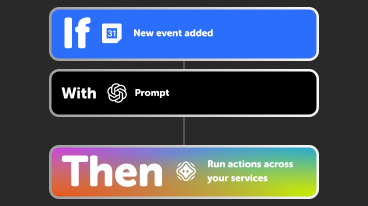
  • If a new calendar event is added, with an AI prompt, then an AI agent runs actions across your services

    Power more advanced automations

    Use credits to power your automations, including actions that require more processing.
  • Get access to faster speeds

    Access faster speeds and higher rate limits

    Get faster updates and more actions with increased rate limits and more frequent checks.

More on MagicHue and TRIGGERcmd

About MagicHue

MagicHue and IFTTT let you automate your smart lights with color changes, brightness adjustments, and dynamic modes.
Explore MagicHue

More integrations with MagicHue

About TRIGGERcmd

TRIGGERcmd and IFTTT let you run commands on your computers from anywhere, triggered by anything.
Explore TRIGGERcmd

More integrations with TRIGGERcmd

IFTTT helps all your apps and devices work better together

Get started for free