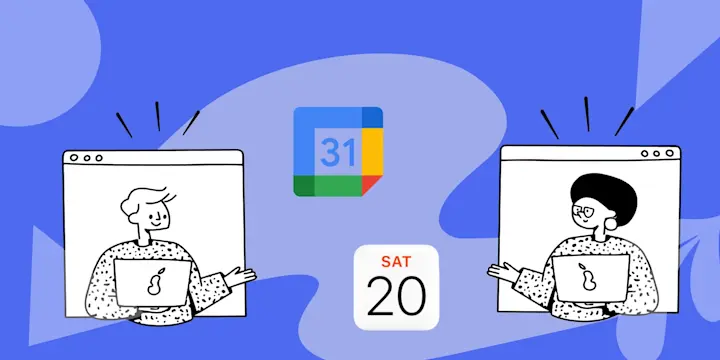
Keeping track of your schedule shouldn’t feel like a juggling act. For example, many people use Google Calendar for work and Apple Calendar for personal events, and keeping the two in sync isn't as simple as it should be. Missed meetings, double bookings, and conflicting reminders all can happen when your calendars don’t talk to each other.
The good news is that syncing Google Calendar with Apple Calendar doesn’t require complex setup or having to manually put in dates. With IFTTT, you can connect the two calendars and let automation handle the rest.
IFTTT is our free automation platform that can connect over 1000 apps and services to Google and iOS calendar using a simple no-code automation builder. In this guide, we’ll walk through how to use IFTTT to sync events between Google Calendar and Apple Calendar so your schedule stays consistent across all your devices.

Why sync Google Calendar with Apple Calendar?
Using multiple calendars is common in the workplace, especially with more and more companies adopting the full Google Suite package of tools. You could easily find yourself with two or more separate calendars for work, with additional calendars for personal events, birthdays, etc.
Simply put, syncing Google Calendar with Apple Calendar helps you keep everything in one place. When events are automatically mirrored across both platforms, you always know what’s coming up, no matter which device you’re using.
This kind of integration is super helpful if you:
- - Switch between iPhone, iPad, Mac, and non-Apple devices
- - Share calendars with coworkers, clients, or family members
- - Manage personal and work schedules together
- - Use reminders and notifications to stay on track
There's no bigger waste than having to copy and paste the same event from calendar to calendar. Instead of playing this mind-numbing game or constantly checking multiple apps, automation ensures your calendars stay aligned automatically.
What is IFTTT and how does it help sync calendars?
IFTTT is our free automation platform that aims to make using everyday tools easier, including Google Calendar and Apple Calendar. Each automation you create is called an Applet, and it follows a simple rule: If this happens, then do that.
For syncing calendars, that might look like: If a new event is added to Google Calendar, then add that event to Apple Calendar.
Once you've got the basic structure down, Applets can be expanded into complex workflows with add-ons like date and time, filter code, and more. After being enabled, these Applets run quietly in the background. You don’t need to keep IFTTT open, and there’s no coding or technical setup required.
Although Google and Apple both offer some native integration features within their apps, using IFTTT allows you to manage your calendars exactly how you want to. With a simple Applet, you can:
- - Automatically copy events between calendars
- - Keep event details consistent
- - Reduce manual entry and scheduling errors
- - Allow you to customize which events sync and how
A bonus tip for Microsoft users is that IFTTT can also sync your Apple and Google calendars with Microsoft 365 Calendar!
Options for native syncing
Apple and Google do offer a few built-in ways to view events on each other's platforms, but these options are fairly limited. Since these two companies are competitors, it's likely we'll never see full native syncing options; they'd rather have you choose only one or the other.
Adding Google Calendar to Apple Calendar
The most common native method is adding your Google account directly to Apple Calendar. Once connected, events from your Google Calendar will appear alongside your Apple events.
This approach works well if your goal is simply to see everything in one place. However, it comes with a few drawbacks. Syncing can be delayed, especially for newly created or updated events, and changes don’t always sync both ways in real time. You also don't have any control over which events sync, and some details, reminders, notifications, or metadata won't be transferred consistently.
Subscribing to a Google Calendar feed
Another native option is subscribing to a Google Calendar using a public or private calendar link. This creates a read-only calendar inside Apple Calendar. While this method is simple, it’s also very restrictive. Events are view-only and can’t be edited from Apple Calendar. You also can’t add new events or changes back to Google Calendar.
Syncing Google Calendar with Apple Calendar using IFTTT
Within just a couple of minutes, you can unlock the best option to sync your calendars to each other, and any other tools you can imagine to build the ultimate workflow. Here’s how to set everything up.
1. Create an IFTTT account
If you don’t already have an IFTTT account, you’ll need one to get started. Head to ifttt.com and sign up using an email or social login.
2. Connect Google Calendar and Apple Calendar
Next, you’ll connect both calendar services to IFTTT. Use the search bar to find Google Calendar. Click Connect and sign in to your Google account. You’ll be asked to grant permission so IFTTT can access your calendar events. IFTTT never sells or shares your data with any third party, ever.
Repeat the same process for Apple Calendar. Once connected, both services will be available for use in Applets.
3. Create your first Applet
You can use the explore page to browse for community-built Applets, or click on any of the ones featured in this article to get started. If you want custom control over your automation, you can build your own Applet.
Click Create in your IFTTT dashboard. For the “If This” trigger, choose your first calendar and select a trigger like New event added or Any event starts.
For the “Then That” action, choose your next calendar and select Add event. You can customize which details carry over, such as event title, location, description, and time.
This Applet will now automatically add Google Calendar events to Apple Calendar whenever they’re created. You can also create a second Applet to sync events in the opposite direction if you want two-way syncing. For more details on building Applets, visit our comprehensive guide here.
Real-world use cases with IFTTT
Below are some of the most popular and practical ways people use IFTTT to keep Google Calendar and Apple Calendar in sync without constantly checking multiple apps.
1. Sync new Google Calendar events to Apple Calendar
This is the most common setup, especially for users who rely on Google Calendar for work but prefer Apple Calendar on their iPhone or Mac.
Any time a meeting, interview, or deadline is added to Google Calendar, it’s automatically mirrored in Apple Calendar with the same title, time, and description. That means work meetings show up on Apple devices instantly without any manual copying or double entry.
-
Add new iOS Calendar events to Google Calendar

-
-
Whenever you add a new iOS contact mark it in your Google Calendar
-
-
iOS Calendar events to Google Calendar
-
-
Add new Google Calendar events to iOS Calendar
-


2. Targeted sync with keyword triggers
This type of Applet watches for events you create in Apple or Google Calendar that contain a specific word or phrase (like “Work” or “Client”) and then can execute an action.
This is a fantastic way to keep your work and personal events separate while still seeing an overall view of your week.
-
Send LINE alert before keyword event starts
-
-
Send Android SMS for keyworded Google Calendar events
-
-
Send scheduled GroupMe messages from Google Calendar
-



3. Get custom notifications for events
Never forget an important date again! You can use Google Calendar or iOS events as triggers to push notifications, perfect for remembering birthdays or anniversaries that live in your calendar.
-
Send Vybit sound when Google Calendar keyword event starts

-
-
Get IFTTT notification for new iOS Calendar events
-
-
Get IFTTT notification for calendar birthday events
-

4. Log hours or track events automatically
These popular Applets turn routine tracking, like logging work or study sessions, into automated calendar entries so you can have records without manual entry. This is great for freelancers, students, or anyone who tracks billable time.

5. Add daily weather to your calendar
There's nothing worse than stepping outside for the day completely unprepared. Use IFTTT to combine Google and Apple Calendar with Weather Underground so that your daily calendar has the weather built in.
-
Add Weather Underground forecast to iOS Calendar daily
-
-
Add Weather Underground daily forecast to Google Calendar
-

Staying on schedule with IFTTT
Keeping Google Calendar and Apple Calendar in sync doesn’t have to be complicated, time-consuming, or annoying. While native options can help you sync some events across platforms, they fall short when it comes to real control, customization, and true automation. That’s where IFTTT makes the difference.
Whether you want a simple one-way sync, a two-way setup, or more advanced workflows like keyword-based syncing, notifications, time tracking, or daily weather updates, IFTTT gives you all the tools you need.
If your schedule and calendar workflow need some serious TLC, IFTTT is here to help. Simply click the button below to get started for free today.