










Turn on Orro lights when you arrive home
Popular Orro workflows & automations
-
 7
7
-
-
Turn on Orro lights when August lock is unlocked
2
-
-
Turn off Orro lights when you leave home
-
-
Turn on Orro lights when the first group member gets home
-
-
Turn off all Orro lights when the last member leaves
-
-
Activate Orro Away Mode when the last member leaves home
-
-
Turn off Orro Away Mode when first group member arrives
-
-
Turn on Orro lights automatically at sunset
-
-
Turn off Orro lights at sunrise
-




Create your own Orro workflow
Create custom workflows effortlessly by selecting triggers, queries, and actions. With IFTTT, it's simple: “If this” trigger happens, “then that” action follows. Streamline tasks and save time with automated workflows that work for you.
15 triggers, queries, and actions
Lights turned ON
Polling trigger
Polling Applets run after IFTTT reaches out to the trigger service and finds a new trigger event. These trigger checks occur every hour on Free, every 15 minutes on Starter, and every 5 minutes on Pro and Pro+.
This trigger fires when the lights turn on.
Lights turned OFF
Polling trigger
Polling Applets run after IFTTT reaches out to the trigger service and finds a new trigger event. These trigger checks occur every hour on Free, every 15 minutes on Starter, and every 5 minutes on Pro and Pro+.
This trigger fires when the lights turn off.
Light Switch changed to PRESENT
Polling trigger
Polling Applets run after IFTTT reaches out to the trigger service and finds a new trigger event. These trigger checks occur every hour on Free, every 15 minutes on Starter, and every 5 minutes on Pro and Pro+.
This trigger fires when the Switch (or Group) changes to present.
Light Switch changed to VACANT
Polling trigger
Polling Applets run after IFTTT reaches out to the trigger service and finds a new trigger event. These trigger checks occur every hour on Free, every 15 minutes on Starter, and every 5 minutes on Pro and Pro+.
This trigger fires when the Switch (or Group) changes to a vacant.
Away Mode ENABLED
Polling trigger
Polling Applets run after IFTTT reaches out to the trigger service and finds a new trigger event. These trigger checks occur every hour on Free, every 15 minutes on Starter, and every 5 minutes on Pro and Pro+.
This trigger fires when Away Mode is enabled.
Away Mode DISABLED
Polling trigger
Polling Applets run after IFTTT reaches out to the trigger service and finds a new trigger event. These trigger checks occur every hour on Free, every 15 minutes on Starter, and every 5 minutes on Pro and Pro+.
This trigger fires when Away Mode is disabled.
Scene ACTIVATED
Polling trigger
Polling Applets run after IFTTT reaches out to the trigger service and finds a new trigger event. These trigger checks occur every hour on Free, every 15 minutes on Starter, and every 5 minutes on Pro and Pro+.
This trigger fires when a scene is activated.
Scene DEACTIVATED
Polling trigger
Polling Applets run after IFTTT reaches out to the trigger service and finds a new trigger event. These trigger checks occur every hour on Free, every 15 minutes on Starter, and every 5 minutes on Pro and Pro+.
This trigger fires when a scene is deactivated.
Turn ON
Action
An action is the task your Applet carries out after the trigger occurs. It defines what happens as the result of your automation and completes the workflow.
This action will turn the specified switch or group of switches on.
Turn OFF
Action
An action is the task your Applet carries out after the trigger occurs. It defines what happens as the result of your automation and completes the workflow.
This action will turn the specified switch or group of switches off.
SET Dimmer
Action
An action is the task your Applet carries out after the trigger occurs. It defines what happens as the result of your automation and completes the workflow.
This action will set the dimmer for the specified switch or group of switches.
ENABLE Away Mode
Action
An action is the task your Applet carries out after the trigger occurs. It defines what happens as the result of your automation and completes the workflow.
This action will ENABLE Away Mode for your Orro Home.
DISABLE Away Mode
Action
An action is the task your Applet carries out after the trigger occurs. It defines what happens as the result of your automation and completes the workflow.
This action will DISABLE Away Mode for your Orro Home.
Turn ON All Lights
Action
An action is the task your Applet carries out after the trigger occurs. It defines what happens as the result of your automation and completes the workflow.
This action will turn ON all switches.
Turn OFF All Lights
Action
An action is the task your Applet carries out after the trigger occurs. It defines what happens as the result of your automation and completes the workflow.
This action will turn OFF all switches.
Lights turned ON
Polling trigger
Polling Applets run after IFTTT reaches out to the trigger service and finds a new trigger event. These trigger checks occur every hour on Free, every 15 minutes on Starter, and every 5 minutes on Pro and Pro+.
This trigger fires when the lights turn on.
Lights turned OFF
Polling trigger
Polling Applets run after IFTTT reaches out to the trigger service and finds a new trigger event. These trigger checks occur every hour on Free, every 15 minutes on Starter, and every 5 minutes on Pro and Pro+.
This trigger fires when the lights turn off.
Light Switch changed to PRESENT
Polling trigger
Polling Applets run after IFTTT reaches out to the trigger service and finds a new trigger event. These trigger checks occur every hour on Free, every 15 minutes on Starter, and every 5 minutes on Pro and Pro+.
This trigger fires when the Switch (or Group) changes to present.
Light Switch changed to VACANT
Polling trigger
Polling Applets run after IFTTT reaches out to the trigger service and finds a new trigger event. These trigger checks occur every hour on Free, every 15 minutes on Starter, and every 5 minutes on Pro and Pro+.
This trigger fires when the Switch (or Group) changes to a vacant.
Away Mode ENABLED
Polling trigger
Polling Applets run after IFTTT reaches out to the trigger service and finds a new trigger event. These trigger checks occur every hour on Free, every 15 minutes on Starter, and every 5 minutes on Pro and Pro+.
This trigger fires when Away Mode is enabled.
Away Mode DISABLED
Polling trigger
Polling Applets run after IFTTT reaches out to the trigger service and finds a new trigger event. These trigger checks occur every hour on Free, every 15 minutes on Starter, and every 5 minutes on Pro and Pro+.
This trigger fires when Away Mode is disabled.
Scene ACTIVATED
Polling trigger
Polling Applets run after IFTTT reaches out to the trigger service and finds a new trigger event. These trigger checks occur every hour on Free, every 15 minutes on Starter, and every 5 minutes on Pro and Pro+.
This trigger fires when a scene is activated.
Scene DEACTIVATED
Polling trigger
Polling Applets run after IFTTT reaches out to the trigger service and finds a new trigger event. These trigger checks occur every hour on Free, every 15 minutes on Starter, and every 5 minutes on Pro and Pro+.
This trigger fires when a scene is deactivated.
Turn ON
Action
An action is the task your Applet carries out after the trigger occurs. It defines what happens as the result of your automation and completes the workflow.
This action will turn the specified switch or group of switches on.
Turn OFF
Action
An action is the task your Applet carries out after the trigger occurs. It defines what happens as the result of your automation and completes the workflow.
This action will turn the specified switch or group of switches off.
SET Dimmer
Action
An action is the task your Applet carries out after the trigger occurs. It defines what happens as the result of your automation and completes the workflow.
This action will set the dimmer for the specified switch or group of switches.
ENABLE Away Mode
Action
An action is the task your Applet carries out after the trigger occurs. It defines what happens as the result of your automation and completes the workflow.
This action will ENABLE Away Mode for your Orro Home.
Automate Orro from your AI assistant
Ask Claude to create Orro applets for your smart lights, right from your AI assistant, with IFTTT MCP.
Set up IFTTT MCP


Connect Orro to these apps and more



GET STARTED
How to connect to a Orro automation
Find an Applet using Orro and Location
Find an automation to connect to, or create your own!Connect IFTTT to your accounts
Securely connect the Applet services to your respective accounts.Finalize and customize your Applet
Review trigger and action settings, and click connect. Simple as that!
USE CASE
Dim your lights for scenes
Control dimmer levels with IFTTT when you activate specific scenes, customizing your lighting to suit various activities or moods.
Get startedMore credits, more Orro Applets
-

More credits, more possibilities
Get more credits per month to power more automation activity. -
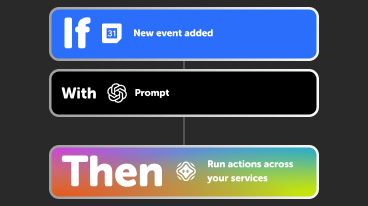
Power more advanced automations
Use credits to power your automations, including actions that require more processing. -

Access faster speeds and higher rate limits
Get faster updates and more actions with increased rate limits and more frequent checks.
About Orro
Use IFTTT to control your Orro Switches. Turn on and off the lights and set the dimmer level via IFTTT Applets. In order to use the Orro Applets, you must have Orro Switches installed in your Home.