









Press a Button Widget to turn on your Beseye camera
Other popular Beseye workflows and automations
-
-
-
Press a Button to Turn Off Your Beseye Camera
-
-
Activate Beseye camera when TMT Chow gate closes
-
-
Turn off Beseye camera when you get home
-
-
Get a VoIP call when Beseye detects a person
-
-
Get IFTTT notification when Beseye detects motion
-
-
Play Sonos favorite when Beseye detects a person
-
-
Turn on Beseye camera when you leave home
-
-
Turn on WiZ lights when Beseye detects a person
-







Automate Beseye and go-e Charger from your AI assistant
Ask ChatGPT to create Beseye applets and control your camera with IFTTT MCP.
Set up IFTTT MCP


Create your own Beseye and go-e Charger workflow
Create custom workflows effortlessly by selecting triggers, queries, and actions. With IFTTT, it's simple: “If this” trigger happens, “then that” action follows. Streamline tasks and save time with automated workflows that work for you.
59 triggers, queries, and actions
Car connected
Polling trigger
Polling Applets run after IFTTT reaches out to the trigger service and finds a new trigger event. These trigger checks occur every 5 minutes for Pro and Pro+ users, and every hour for Free users.
This trigger fires when the car is plugged in.
Charging End
Polling trigger
Polling Applets run after IFTTT reaches out to the trigger service and finds a new trigger event. These trigger checks occur every 5 minutes for Pro and Pro+ users, and every hour for Free users.
This trigger fires when the charging process has finished.
Charging Paused
Polling trigger
Polling Applets run after IFTTT reaches out to the trigger service and finds a new trigger event. These trigger checks occur every 5 minutes for Pro and Pro+ users, and every hour for Free users.
This trigger fires when charging is paused.
Charging Started
Polling trigger
Polling Applets run after IFTTT reaches out to the trigger service and finds a new trigger event. These trigger checks occur every 5 minutes for Pro and Pro+ users, and every hour for Free users.
This trigger fires when charging has started.
Error
Polling trigger
Polling Applets run after IFTTT reaches out to the trigger service and finds a new trigger event. These trigger checks occur every 5 minutes for Pro and Pro+ users, and every hour for Free users.
This trigger fires when an Error occurs.
Human detected
Polling trigger
Polling Applets run after IFTTT reaches out to the trigger service and finds a new trigger event. These trigger checks occur every 5 minutes for Pro and Pro+ users, and every hour for Free users.
This Trigger fires when a human is detected by Beseye camera.
Model Status
Polling trigger
Polling Applets run after IFTTT reaches out to the trigger service and finds a new trigger event. These trigger checks occur every 5 minutes for Pro and Pro+ users, and every hour for Free users.
This trigger fires when the model status changes.
Motion detected
Polling trigger
Polling Applets run after IFTTT reaches out to the trigger service and finds a new trigger event. These trigger checks occur every 5 minutes for Pro and Pro+ users, and every hour for Free users.
This Trigger fires when motion is detected by Beseye camera.
Transaction
Polling trigger
Polling Applets run after IFTTT reaches out to the trigger service and finds a new trigger event. These trigger checks occur every 5 minutes for Pro and Pro+ users, and every hour for Free users.
This trigger fires when a transaction happened.
Adapter connected

Query
A query lets your Applet retrieve extra data that isn't included in the trigger, so that your automation can include more complete or useful information.
This query returns true if an current limiting adapter (i.e. 16A) is used.
Car State
Query
A query lets your Applet retrieve extra data that isn't included in the trigger, so that your automation can include more complete or useful information.
This query returns the car state (Unknown, Idle, Wait for Car, Charging, Finished or Error).
Charging Allowed
Query
A query lets your Applet retrieve extra data that isn't included in the trigger, so that your automation can include more complete or useful information.
This query returns true/false, depending on if the car is allowed to charge right now.
Current IP Address
Query
A query lets your Applet retrieve extra data that isn't included in the trigger, so that your automation can include more complete or useful information.
This query returns the IP address of the charger.
Currently connected WiFi ssid
Query
A query lets your Applet retrieve extra data that isn't included in the trigger, so that your automation can include more complete or useful information.
This query returns the ssid of the currently connected WiFi.
Firmware Version
Query
A query lets your Applet retrieve extra data that isn't included in the trigger, so that your automation can include more complete or useful information.
This query returns the firmware version.
Get access control
Query
A query lets your Applet retrieve extra data that isn't included in the trigger, so that your automation can include more complete or useful information.
This query returns the current state of access control setting.
Get automatic stop energy
Query
A query lets your Applet retrieve extra data that isn't included in the trigger, so that your automation can include more complete or useful information.
This query returns the automatic stop energy limit.
Get cable current limit
Query
A query lets your Applet retrieve extra data that isn't included in the trigger, so that your automation can include more complete or useful information.
This query returns the cable current limit.
Get colors
Query
A query lets your Applet retrieve extra data that isn't included in the trigger, so that your automation can include more complete or useful information.
This query returns the colors for Idle, Charging and Done.
Get effective charging current
Query
A query lets your Applet retrieve extra data that isn't included in the trigger, so that your automation can include more complete or useful information.
This query returns the effective charging current.
Get energy Array
Query
A query lets your Applet retrieve extra data that isn't included in the trigger, so that your automation can include more complete or useful information.
This query returns the energy array.
Activate your camera
Action
An action is the task your Applet carries out after the trigger occurs. It defines what happens as the result of your automation and completes the workflow.
This Action will set your camera ON.
Deactivate your camera
Action
An action is the task your Applet carries out after the trigger occurs. It defines what happens as the result of your automation and completes the workflow.
This Action will set your camera OFF.
Pause charging
Action
An action is the task your Applet carries out after the trigger occurs. It defines what happens as the result of your automation and completes the workflow.
This action will pause the charging process.
Reboot Charger
Action
An action is the task your Applet carries out after the trigger occurs. It defines what happens as the result of your automation and completes the workflow.
This action will reboot the charger.
Set access control
Action
An action is the task your Applet carries out after the trigger occurs. It defines what happens as the result of your automation and completes the workflow.
This action will set the access control setting.
Set automatic stop energy
Action
An action is the task your Applet carries out after the trigger occurs. It defines what happens as the result of your automation and completes the workflow.
This action will set the automatic stop energy.
Set charging state
Action
An action is the task your Applet carries out after the trigger occurs. It defines what happens as the result of your automation and completes the workflow.
This action will set the charging state to Neutral, Force-Off or Force-On.
Set colors
Action
An action is the task your Applet carries out after the trigger occurs. It defines what happens as the result of your automation and completes the workflow.
This action will set the colors for Idle, Charging and Done.
Set Energy Limit
Action
An action is the task your Applet carries out after the trigger occurs. It defines what happens as the result of your automation and completes the workflow.
This action will set the energy limit for the current charging session.
Set energy save mode
Action
An action is the task your Applet carries out after the trigger occurs. It defines what happens as the result of your automation and completes the workflow.
This action will set the led energy save mode.
Set flexible energy tariff price limit
Action
An action is the task your Applet carries out after the trigger occurs. It defines what happens as the result of your automation and completes the workflow.
This action will set the flexible energy tariff price limit.
Set Friendly Name
Action
An action is the task your Applet carries out after the trigger occurs. It defines what happens as the result of your automation and completes the workflow.
This action will set the friendly name.
Activate your camera
Action
An action is the task your Applet carries out after the trigger occurs. It defines what happens as the result of your automation and completes the workflow.
This Action will set your camera ON.
Adapter connected
Query
A query lets your Applet retrieve extra data that isn't included in the trigger, so that your automation can include more complete or useful information.
This query returns true if an current limiting adapter (i.e. 16A) is used.
Car connected
Polling trigger
Polling Applets run after IFTTT reaches out to the trigger service and finds a new trigger event. These trigger checks occur every 5 minutes for Pro and Pro+ users, and every hour for Free users.
This trigger fires when the car is plugged in.
Car State
Query
A query lets your Applet retrieve extra data that isn't included in the trigger, so that your automation can include more complete or useful information.
This query returns the car state (Unknown, Idle, Wait for Car, Charging, Finished or Error).
Charging Allowed
Query
A query lets your Applet retrieve extra data that isn't included in the trigger, so that your automation can include more complete or useful information.
This query returns true/false, depending on if the car is allowed to charge right now.
Charging End
Polling trigger
Polling Applets run after IFTTT reaches out to the trigger service and finds a new trigger event. These trigger checks occur every 5 minutes for Pro and Pro+ users, and every hour for Free users.
This trigger fires when the charging process has finished.
Charging Paused
Polling trigger
Polling Applets run after IFTTT reaches out to the trigger service and finds a new trigger event. These trigger checks occur every 5 minutes for Pro and Pro+ users, and every hour for Free users.
This trigger fires when charging is paused.
Charging Started
Polling trigger
Polling Applets run after IFTTT reaches out to the trigger service and finds a new trigger event. These trigger checks occur every 5 minutes for Pro and Pro+ users, and every hour for Free users.
This trigger fires when charging has started.
Current IP Address
Query
A query lets your Applet retrieve extra data that isn't included in the trigger, so that your automation can include more complete or useful information.
This query returns the IP address of the charger.
Currently connected WiFi ssid
Query
A query lets your Applet retrieve extra data that isn't included in the trigger, so that your automation can include more complete or useful information.
This query returns the ssid of the currently connected WiFi.
Deactivate your camera
Action
An action is the task your Applet carries out after the trigger occurs. It defines what happens as the result of your automation and completes the workflow.
This Action will set your camera OFF.
Error
Polling trigger
Polling Applets run after IFTTT reaches out to the trigger service and finds a new trigger event. These trigger checks occur every 5 minutes for Pro and Pro+ users, and every hour for Free users.
This trigger fires when an Error occurs.
Build an automation in seconds!
If

Select a trigger the automation will use
Car connected
Charging End
Charging Paused
Charging Started
Error
 Human detected
Model Status
Motion detected
Transaction
Human detected
Model Status
Motion detected
Transaction
Then
Select an action the automation will perform
Activate your camera
Deactivate your camera
Pause charging
Reboot Charger
Set access control
Set automatic stop energy
Set charging state
Set colors
Set Energy Limit
Set energy save mode
Set flexible energy tariff price limit
Set Friendly Name
Set ledring brightness
Set Mode
Set Requested Current
Set transaction
Set unlock mode
Start charging
You can add delays, queries, and more actions in the chat.
GET STARTED
How to connect to a Beseye automation
Find an Applet using Beseye and go-e Charger
Find an automation to connect to, or create your own!Connect IFTTT to your accounts
Securely connect the Applet services to your respective accounts.Finalize and customize your Applet
Review trigger and action settings, and click connect. Simple as that!Upgrade your automations with
-
Connect to more Applets
Connect up to 20 automations with Pro, and unlimited automations with Pro+ -
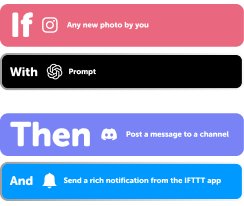
Add multiple actions with exclusive services
Add real-time data and multiple actions for smarter automations -
Get access to faster speeds
Get faster updates and more actions with higher rate limits and quicker checks
More on Beseye and go-e Charger
About Beseye
Beseye offers the world’s best home cameras and cloud services for the security and happiness of your family.
About go-e Charger
Connect your go-eCharger with other IoT devices or control charging with other services!