









Turn off Nest fan with Google Assistant
Other popular Google Nest Thermostat workflows and automations
-
 2
2
-
-
Turn on GE Appliances Window AC when Nest temperature rises above threshold
1
-
-
Turn on Google Nest fan when Airthings CO2 is high
6
-
-
Get a notification when your Nest Thermostat temperature drops below a set level
1
-
-
Notify when Google Nest temperature drops below threshold
26
-
-
Log and text when temperature rises above threshold
-
-
Turn off Google Nest Thermostat fan when you leave
-
-
Send notifications when temperature drops below a set level
1
-
-
Send an SMS when Nest temperature rises above threshold
1
-









Automate Google Nest Thermostat and Nice from your AI assistant
Have Claude, ChatGPT, or Cursor build and run Google Nest Thermostat and Nice automations for you, like “Turn off Nest fan with Google Assistant”, with IFTTT MCP.
Set up IFTTT MCP


Create your own Google Nest Thermostat and Nice workflow
Create custom workflows effortlessly by selecting triggers, queries, and actions. With IFTTT, it's simple: “If this” trigger happens, “then that” action follows. Streamline tasks and save time with automated workflows that work for you.
17 triggers, queries, and actions
Door is closed
Polling trigger
Polling Applets run after IFTTT reaches out to the trigger service and finds a new trigger event. These trigger checks occur every hour on Free, every 15 minutes on Starter, and every 5 minutes on Pro and Pro+.
This trigger fires when the door is fully closed.
Door is open
Polling trigger
Polling Applets run after IFTTT reaches out to the trigger service and finds a new trigger event. These trigger checks occur every hour on Free, every 15 minutes on Starter, and every 5 minutes on Pro and Pro+.
This trigger fires when the door is fully or partially open.
Humidity drops below
Polling trigger
Polling Applets run after IFTTT reaches out to the trigger service and finds a new trigger event. These trigger checks occur every hour on Free, every 15 minutes on Starter, and every 5 minutes on Pro and Pro+.
This trigger fires when the humidity drops below a given threshold.
Humidity rises above
Polling trigger
Polling Applets run after IFTTT reaches out to the trigger service and finds a new trigger event. These trigger checks occur every hour on Free, every 15 minutes on Starter, and every 5 minutes on Pro and Pro+.
This trigger fires when the humidity rises above a given threshold.
Temperature drops below
Polling trigger
Polling Applets run after IFTTT reaches out to the trigger service and finds a new trigger event. These trigger checks occur every hour on Free, every 15 minutes on Starter, and every 5 minutes on Pro and Pro+.
This trigger fires when the temperature drops below a given threshold.
Temperature rises above
Polling trigger
Polling Applets run after IFTTT reaches out to the trigger service and finds a new trigger event. These trigger checks occur every hour on Free, every 15 minutes on Starter, and every 5 minutes on Pro and Pro+.
This trigger fires when the temperature rises above a given threshold.
Close door
Action
An action is the task your Applet carries out after the trigger occurs. It defines what happens as the result of your automation and completes the workflow.
This action will close the door you specify. If the door is already closed, the door will remain closed.
Open door
Action
An action is the task your Applet carries out after the trigger occurs. It defines what happens as the result of your automation and completes the workflow.
This action will open the door you specify. If the door is already open, the door will remain open.
Set COOL temperature
Action
An action is the task your Applet carries out after the trigger occurs. It defines what happens as the result of your automation and completes the workflow.
This action will set the desired temperature in the COOL mode.
Set HOT temperature
Action
An action is the task your Applet carries out after the trigger occurs. It defines what happens as the result of your automation and completes the workflow.
This action will set the desired temperature in the HOT mode.
Set temperature range
Action
An action is the task your Applet carries out after the trigger occurs. It defines what happens as the result of your automation and completes the workflow.
This action will set the desired temperature HEAT & COOL mode range.
Turn off Eco Mode
Action
An action is the task your Applet carries out after the trigger occurs. It defines what happens as the result of your automation and completes the workflow.
This action will turn off your thermostat's Eco Mode. When the Eco mode is turned off, the thermostat mode will default to the last standard mode (HEAT, COOL, HEATCOOL, or OFF) that was active.
Turn off fan
Action
An action is the task your Applet carries out after the trigger occurs. It defines what happens as the result of your automation and completes the workflow.
This action will turn off your thermostat's fan.
Turn on Eco Mode
Action
An action is the task your Applet carries out after the trigger occurs. It defines what happens as the result of your automation and completes the workflow.
This action will turn on your thermostat with Eco Mode.
Turn on fan
Action
An action is the task your Applet carries out after the trigger occurs. It defines what happens as the result of your automation and completes the workflow.
This action will turn on your thermostat's fan for X minutes.
Turn thermostat off
Action
An action is the task your Applet carries out after the trigger occurs. It defines what happens as the result of your automation and completes the workflow.
This action will turn off your thermostat.
Turn thermostat on
Action
An action is the task your Applet carries out after the trigger occurs. It defines what happens as the result of your automation and completes the workflow.
This action will turn on your thermostat.
Close door
Action
An action is the task your Applet carries out after the trigger occurs. It defines what happens as the result of your automation and completes the workflow.
This action will close the door you specify. If the door is already closed, the door will remain closed.
Door is closed
Polling trigger
Polling Applets run after IFTTT reaches out to the trigger service and finds a new trigger event. These trigger checks occur every hour on Free, every 15 minutes on Starter, and every 5 minutes on Pro and Pro+.
This trigger fires when the door is fully closed.
Door is open
Polling trigger
Polling Applets run after IFTTT reaches out to the trigger service and finds a new trigger event. These trigger checks occur every hour on Free, every 15 minutes on Starter, and every 5 minutes on Pro and Pro+.
This trigger fires when the door is fully or partially open.
Humidity drops below
Polling trigger
Polling Applets run after IFTTT reaches out to the trigger service and finds a new trigger event. These trigger checks occur every hour on Free, every 15 minutes on Starter, and every 5 minutes on Pro and Pro+.
This trigger fires when the humidity drops below a given threshold.
Humidity rises above
Polling trigger
Polling Applets run after IFTTT reaches out to the trigger service and finds a new trigger event. These trigger checks occur every hour on Free, every 15 minutes on Starter, and every 5 minutes on Pro and Pro+.
This trigger fires when the humidity rises above a given threshold.
Open door
Action
An action is the task your Applet carries out after the trigger occurs. It defines what happens as the result of your automation and completes the workflow.
This action will open the door you specify. If the door is already open, the door will remain open.
Set COOL temperature
Action
An action is the task your Applet carries out after the trigger occurs. It defines what happens as the result of your automation and completes the workflow.
This action will set the desired temperature in the COOL mode.
Set HOT temperature
Action
An action is the task your Applet carries out after the trigger occurs. It defines what happens as the result of your automation and completes the workflow.
This action will set the desired temperature in the HOT mode.
Set temperature range
Action
An action is the task your Applet carries out after the trigger occurs. It defines what happens as the result of your automation and completes the workflow.
This action will set the desired temperature HEAT & COOL mode range.
Temperature drops below
Polling trigger
Polling Applets run after IFTTT reaches out to the trigger service and finds a new trigger event. These trigger checks occur every hour on Free, every 15 minutes on Starter, and every 5 minutes on Pro and Pro+.
This trigger fires when the temperature drops below a given threshold.
Temperature rises above
Polling trigger
Polling Applets run after IFTTT reaches out to the trigger service and finds a new trigger event. These trigger checks occur every hour on Free, every 15 minutes on Starter, and every 5 minutes on Pro and Pro+.
This trigger fires when the temperature rises above a given threshold.
Turn off Eco Mode
Action
An action is the task your Applet carries out after the trigger occurs. It defines what happens as the result of your automation and completes the workflow.
This action will turn off your thermostat's Eco Mode. When the Eco mode is turned off, the thermostat mode will default to the last standard mode (HEAT, COOL, HEATCOOL, or OFF) that was active.
Build an automation in seconds!
If

Select a trigger the automation will use
Door is closed
Door is open
 Humidity drops below
Humidity rises above
Temperature drops below
Temperature rises above
Humidity drops below
Humidity rises above
Temperature drops below
Temperature rises above
Then
Select an action the automation will perform
Close door
Open door
Set COOL temperature
Set HOT temperature
Set temperature range
Turn off Eco Mode
Turn off fan
Turn on Eco Mode
Turn on fan
Turn thermostat off
Turn thermostat on
You can add delays, queries, and more actions in the chat.
GET STARTED
How to connect to a Google Nest Thermostat automation
Find an Applet using Google Nest Thermostat and Nice
Find an automation to connect to, or create your own!Connect IFTTT to your accounts
Securely connect the Applet services to your respective accounts.Finalize and customize your Applet
Review trigger and action settings, and click connect. Simple as that!Upgrade your automations with
-
Connect to more Applets
Connect up to 20 automations with Pro, and unlimited automations with Pro+ -
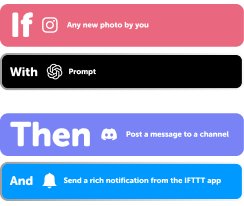
Add multiple actions with exclusive services
Add real-time data and multiple actions for smarter automations -
Get access to faster speeds
Get faster updates and more actions with higher rate limits and quicker checks
Google Nest Thermostat and Nice tips, tools, and resources
-
Productivity
10 automation prompts you need to try

-
Lifestyle
Automations for every kind of hobbyist

-
Smart home
IFTTT vs. Google Home Routines: the best smart home automation pair?
-
Smart home
How to get your bedroom ready the moment you get home
-
Smart home
How to build a gentle wake-up routine with smart lights and your thermostat
-
Lifestyle
How to automate your bedtime routine with smart lights, thermostat, and music
-
Smart home
The ultimate Airbnb smart home guide: best devices to automate your rental
-
Productivity
Automations for hosts of every kind
-
Smart home
Preventing Airbnb disasters: smart smoke, CO2 & water leak sensors
More on Google Nest Thermostat and Nice
About Google Nest Thermostat
Nest thermostats keep you cozy, help save energy, and fit into your home. Learn more here
About Nice
Nice is the smart way to open, close and monitor your garage door from anywhere in the world.