









Flash GraspIO LED when Button widget is pressed
Other popular GraspIO workflows and automations
-
-
-
Flash GraspIO lights green and buzz when a new Product Hunt post appears
-
-
Push a button to run a project of your choice on Cloudio
 2
2
-
-
Show new Product Hunt posts on GraspIO OLED display
-
-
Turn GraspIO LED red when Android battery is low
1
-
-
Set your Seitron thermostat when GraspIO sensor triggers
-
-
Open DotHub gate when GraspIO digital sensor triggers
-
-
Display OLED text when Button widget is pressed
-
-
Open DotHub gate when GraspIO analog sensor triggers
-





Automate GraspIO and Lektrico Charger from your AI assistant
Ask ChatGPT to create GraspIO applets that control your IoT devices, right from your AI assistant, with IFTTT MCP.
Set up IFTTT MCP


Create your own GraspIO and Lektrico Charger workflow
Create custom workflows effortlessly by selecting triggers, queries, and actions. With IFTTT, it's simple: “If this” trigger happens, “then that” action follows. Streamline tasks and save time with automated workflows that work for you.
17 triggers, queries, and actions
Trigger when Analog Sensor fires
Polling trigger
Polling Applets run after IFTTT reaches out to the trigger service and finds a new trigger event. These trigger checks occur every hour on Free, every 15 minutes on Starter, and every 5 minutes on Pro and Pro+.
This trigger fires when the Analog Sensor value matches the specified condition.
Trigger when Digital Sensor fires
Polling trigger
Polling Applets run after IFTTT reaches out to the trigger service and finds a new trigger event. These trigger checks occur every hour on Free, every 15 minutes on Starter, and every 5 minutes on Pro and Pro+.
This trigger fires when the Digital Sensor value matches the specified condition.
Beep Buzzer
Action
An action is the task your Applet carries out after the trigger occurs. It defines what happens as the result of your automation and completes the workflow.
This action will beep the buzzer by turning it on and off at the desired frequency.
Capture a photo or GIF
Action
An action is the task your Applet carries out after the trigger occurs. It defines what happens as the result of your automation and completes the workflow.
This action will capture a photo or GIF using the interfaced camera.
Control Digital Output ports
Action
An action is the task your Applet carries out after the trigger occurs. It defines what happens as the result of your automation and completes the workflow.
This action will control the Digital Output ports on the board.
Control RGB LED
Action
An action is the task your Applet carries out after the trigger occurs. It defines what happens as the result of your automation and completes the workflow.
This action will turn on the RGB LED with the selected color.
Control Servo Motor
Action
An action is the task your Applet carries out after the trigger occurs. It defines what happens as the result of your automation and completes the workflow.
This action will control the Servo Motor angle and speed.
Disabled Mode
Action
An action is the task your Applet carries out after the trigger occurs. It defines what happens as the result of your automation and completes the workflow.
This action disables the EM/3EM device's Load Balancing Mode.
Display text on OLED screen
Action
An action is the task your Applet carries out after the trigger occurs. It defines what happens as the result of your automation and completes the workflow.
This action will display text on the OLED.
Flash RGB LED
Action
An action is the task your Applet carries out after the trigger occurs. It defines what happens as the result of your automation and completes the workflow.
This action will alternately display two colors for the selected duration/delay on the LED .
Green Mode
Action
An action is the task your Applet carries out after the trigger occurs. It defines what happens as the result of your automation and completes the workflow.
This action sets the EM/3EM device to function in Green Mode.
Hybrid Mode
Action
An action is the task your Applet carries out after the trigger occurs. It defines what happens as the result of your automation and completes the workflow.
This action sets the EM/3EM device to function in Hybrid Mode.
Power mode
Action
An action is the task your Applet carries out after the trigger occurs. It defines what happens as the result of your automation and completes the workflow.
This action sets the EM/3EM device to function in Power Mode.
Run a project
Action
An action is the task your Applet carries out after the trigger occurs. It defines what happens as the result of your automation and completes the workflow.
This action will run a project saved in your GraspIO Studio account.
Beep Buzzer
Action
An action is the task your Applet carries out after the trigger occurs. It defines what happens as the result of your automation and completes the workflow.
This action will beep the buzzer by turning it on and off at the desired frequency.
Capture a photo or GIF
Action
An action is the task your Applet carries out after the trigger occurs. It defines what happens as the result of your automation and completes the workflow.
This action will capture a photo or GIF using the interfaced camera.
Control Digital Output ports
Action
An action is the task your Applet carries out after the trigger occurs. It defines what happens as the result of your automation and completes the workflow.
This action will control the Digital Output ports on the board.
Control RGB LED
Action
An action is the task your Applet carries out after the trigger occurs. It defines what happens as the result of your automation and completes the workflow.
This action will turn on the RGB LED with the selected color.
Control Servo Motor
Action
An action is the task your Applet carries out after the trigger occurs. It defines what happens as the result of your automation and completes the workflow.
This action will control the Servo Motor angle and speed.
Disabled Mode
Action
An action is the task your Applet carries out after the trigger occurs. It defines what happens as the result of your automation and completes the workflow.
This action disables the EM/3EM device's Load Balancing Mode.
Display text on OLED screen
Action
An action is the task your Applet carries out after the trigger occurs. It defines what happens as the result of your automation and completes the workflow.
This action will display text on the OLED.
Flash RGB LED
Action
An action is the task your Applet carries out after the trigger occurs. It defines what happens as the result of your automation and completes the workflow.
This action will alternately display two colors for the selected duration/delay on the LED .
Green Mode
Action
An action is the task your Applet carries out after the trigger occurs. It defines what happens as the result of your automation and completes the workflow.
This action sets the EM/3EM device to function in Green Mode.
Hybrid Mode
Action
An action is the task your Applet carries out after the trigger occurs. It defines what happens as the result of your automation and completes the workflow.
This action sets the EM/3EM device to function in Hybrid Mode.
Power mode
Action
An action is the task your Applet carries out after the trigger occurs. It defines what happens as the result of your automation and completes the workflow.
This action sets the EM/3EM device to function in Power Mode.
Run a project
Action
An action is the task your Applet carries out after the trigger occurs. It defines what happens as the result of your automation and completes the workflow.
This action will run a project saved in your GraspIO Studio account.
Build an automation in seconds!
If

Select a trigger the automation will use
Trigger when Analog Sensor fires
Trigger when Digital Sensor fires
Then
Select an action the automation will perform
Beep Buzzer
Capture a photo or GIF
Control Digital Output ports
Control RGB LED
Control Servo Motor
 Disabled Mode
Display text on OLED screen
Flash RGB LED
Green Mode
Hybrid Mode
Power mode
Run a project
Speak the entered text
Start charging
Stop charging
Disabled Mode
Display text on OLED screen
Flash RGB LED
Green Mode
Hybrid Mode
Power mode
Run a project
Speak the entered text
Start charging
Stop charging
You can add delays, queries, and more actions in the chat.
GET STARTED
How to connect to a GraspIO automation
Find an Applet using GraspIO and Lektrico Charger
Find an automation to connect to, or create your own!Connect IFTTT to your accounts
Securely connect the Applet services to your respective accounts.Finalize and customize your Applet
Review trigger and action settings, and click connect. Simple as that!Upgrade your automations with
-
Connect to more Applets
Connect up to 20 automations with Pro, and unlimited automations with Pro+ -
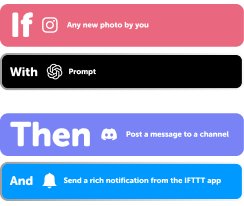
Add multiple actions with exclusive services
Add real-time data and multiple actions for smarter automations -
Get access to faster speeds
Get faster updates and more actions with higher rate limits and quicker checks
More on GraspIO and Lektrico Charger
About GraspIO
IFTTT meets physical computing with GraspIO Cloudio -a Full Stack IoT Suite comprising a feature-packed Raspberry Pi add-on board, an intuitive Drag and Drop programming mobile app, and Unlimited IoT Cloud connectivity. Create simple applets that use Cloudio’s features as both triggers and actions for a new connected experience. One connection, countless possibilities.
About Lektrico Charger
Manage your default Lektrico charger. Lektrico charger is used for charging electric vehicles. For more information visit us at Lektri.co.