









Blink LIFX lights when a call is missed
Other popular LIFX workflows and automations
-
 169
169
-
-
Flash LIFX lights when tagged in a Facebook photo
1.39k
-
-
Tap a Button to Change LIFX Light Color and Brightness
4.01k
-
-
Blink LIFX lights when Ring detects motion
393
-
-
Set LIFX lights to a warm glow at sunset
868
-
-
Blink your LIFX lights when you get a new Twitch follower
538
-
-
Make LIFX lights breathe when you arrive home
681
-
-
Blink LIFX lights when your Ring doorbell is pressed
3.03k
-
-
Press a button to make LIFX lights breathe
674
-







Automate LIFX and Thinka Integration from your AI assistant
Ask Copilot to create LIFX applets for you, right from your AI assistant, with IFTTT MCP.
Set up IFTTT MCP


Create your own LIFX and Thinka Integration workflow
Create custom workflows effortlessly by selecting triggers, queries, and actions. With IFTTT, it's simple: “If this” trigger happens, “then that” action follows. Streamline tasks and save time with automated workflows that work for you.
20 triggers, queries, and actions
Contact Sensor
Polling trigger
Polling Applets run after IFTTT reaches out to the trigger service and finds a new trigger event. These trigger checks occur every hour on Free, every 15 minutes on Starter, and every 5 minutes on Pro and Pro+.
This Trigger monitors sensor contact value and fires whenever the contact state changes.
Current humidity rises above
Polling trigger
Polling Applets run after IFTTT reaches out to the trigger service and finds a new trigger event. These trigger checks occur every hour on Free, every 15 minutes on Starter, and every 5 minutes on Pro and Pro+.
This Trigger monitors sensor humidity value and fires whenever the humidity rises above the value you provide.
Current temperature rises above
Polling trigger
Polling Applets run after IFTTT reaches out to the trigger service and finds a new trigger event. These trigger checks occur every hour on Free, every 15 minutes on Starter, and every 5 minutes on Pro and Pro+.
This Trigger monitors sensor temperature value and fires whenever the temperature rises above the value you provide.
List all of the devices

Query
A query lets your Applet retrieve extra data that isn't included in the trigger, so that your automation can include more complete or useful information.
This query returns all devices within the smart home environment. You can use this query to list all devices so that you can select some of the device(s) from that list
Activate a Scene
Action
An action is the task your Applet carries out after the trigger occurs. It defines what happens as the result of your automation and completes the workflow.
This action will activate a specific scene in your home.
Activate scene
Action
An action is the task your Applet carries out after the trigger occurs. It defines what happens as the result of your automation and completes the workflow.
This Action will activate a Scene.
Blink lights
Action
An action is the task your Applet carries out after the trigger occurs. It defines what happens as the result of your automation and completes the workflow.
This Action will make your lights quickly blink the color of your choice.
Breathe lights
Action
An action is the task your Applet carries out after the trigger occurs. It defines what happens as the result of your automation and completes the workflow.
This Action will make your lights slowly breathe the color of your choice.
Change color of lights
Action
An action is the task your Applet carries out after the trigger occurs. It defines what happens as the result of your automation and completes the workflow.
This Action will change the color of your lights.
Move lights
Action
An action is the task your Applet carries out after the trigger occurs. It defines what happens as the result of your automation and completes the workflow.
This Action will make your LIXF Z lights move in a pattern.
Set Brightness
Action
An action is the task your Applet carries out after the trigger occurs. It defines what happens as the result of your automation and completes the workflow.
This Action will set brightness of your Thinka devices that support brightness.
Set Color
Action
An action is the task your Applet carries out after the trigger occurs. It defines what happens as the result of your automation and completes the workflow.
This Action will set color of your Thinka devices that support color.
Set Temperature
Action
An action is the task your Applet carries out after the trigger occurs. It defines what happens as the result of your automation and completes the workflow.
This Action will set temperature of your Thinka devices that support temperature.
Set Thermostat Mode
Action
An action is the task your Applet carries out after the trigger occurs. It defines what happens as the result of your automation and completes the workflow.
This Action will set thermostat mode of your Thinka devices that support thermostat mode.
Start Clean Cycle
Action
An action is the task your Applet carries out after the trigger occurs. It defines what happens as the result of your automation and completes the workflow.
Turn on the Clean Cycle of your LIFX Clean to it's default duration
Stop Clean Cycle
Action
An action is the task your Applet carries out after the trigger occurs. It defines what happens as the result of your automation and completes the workflow.
Turn off the Clean Cycle of your LIFX Clean
Activate a Scene
Action
An action is the task your Applet carries out after the trigger occurs. It defines what happens as the result of your automation and completes the workflow.
This action will activate a specific scene in your home.
Activate scene
Action
An action is the task your Applet carries out after the trigger occurs. It defines what happens as the result of your automation and completes the workflow.
This Action will activate a Scene.
Blink lights
Action
An action is the task your Applet carries out after the trigger occurs. It defines what happens as the result of your automation and completes the workflow.
This Action will make your lights quickly blink the color of your choice.
Breathe lights
Action
An action is the task your Applet carries out after the trigger occurs. It defines what happens as the result of your automation and completes the workflow.
This Action will make your lights slowly breathe the color of your choice.
Change color of lights
Action
An action is the task your Applet carries out after the trigger occurs. It defines what happens as the result of your automation and completes the workflow.
This Action will change the color of your lights.
Contact Sensor
Polling trigger
Polling Applets run after IFTTT reaches out to the trigger service and finds a new trigger event. These trigger checks occur every hour on Free, every 15 minutes on Starter, and every 5 minutes on Pro and Pro+.
This Trigger monitors sensor contact value and fires whenever the contact state changes.
Current humidity rises above
Polling trigger
Polling Applets run after IFTTT reaches out to the trigger service and finds a new trigger event. These trigger checks occur every hour on Free, every 15 minutes on Starter, and every 5 minutes on Pro and Pro+.
This Trigger monitors sensor humidity value and fires whenever the humidity rises above the value you provide.
Current temperature rises above
Polling trigger
Polling Applets run after IFTTT reaches out to the trigger service and finds a new trigger event. These trigger checks occur every hour on Free, every 15 minutes on Starter, and every 5 minutes on Pro and Pro+.
This Trigger monitors sensor temperature value and fires whenever the temperature rises above the value you provide.
List all of the devices
Query
A query lets your Applet retrieve extra data that isn't included in the trigger, so that your automation can include more complete or useful information.
This query returns all devices within the smart home environment. You can use this query to list all devices so that you can select some of the device(s) from that list
Move lights
Action
An action is the task your Applet carries out after the trigger occurs. It defines what happens as the result of your automation and completes the workflow.
This Action will make your LIXF Z lights move in a pattern.
Set Brightness
Action
An action is the task your Applet carries out after the trigger occurs. It defines what happens as the result of your automation and completes the workflow.
This Action will set brightness of your Thinka devices that support brightness.
Set Color
Action
An action is the task your Applet carries out after the trigger occurs. It defines what happens as the result of your automation and completes the workflow.
This Action will set color of your Thinka devices that support color.
Build an automation in seconds!
If

Select a trigger the automation will use
Contact Sensor
Current humidity rises above
Current temperature rises above
Then
Select an action the automation will perform
Activate a Scene
 Activate scene
Blink lights
Breathe lights
Change color of lights
Move lights
Set Brightness
Set Color
Set Temperature
Set Thermostat Mode
Start Clean Cycle
Stop Clean Cycle
Toggle lights on/off
Turn lights off
Turn lights on
Turn on or off device
Activate scene
Blink lights
Breathe lights
Change color of lights
Move lights
Set Brightness
Set Color
Set Temperature
Set Thermostat Mode
Start Clean Cycle
Stop Clean Cycle
Toggle lights on/off
Turn lights off
Turn lights on
Turn on or off device
You can add delays, queries, and more actions in the chat.
GET STARTED
How to connect to a LIFX automation
Find an Applet using LIFX and Thinka Integration
Find an automation to connect to, or create your own!Connect IFTTT to your accounts
Securely connect the Applet services to your respective accounts.Finalize and customize your Applet
Review trigger and action settings, and click connect. Simple as that!Upgrade your automations with
-

Connect to more Applets
Connect up to 20 automations with Pro, and unlimited automations with Pro+ -
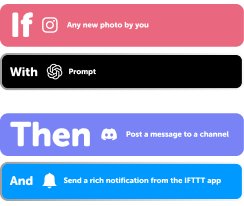
Add multiple actions with exclusive services
Add real-time data and multiple actions for smarter automations -
Get access to faster speeds
Get faster updates and more actions with higher rate limits and quicker checks
LIFX and Thinka Integration tips, tools, and resources
-
Popular
What your automations say about your aesthetic

-
Productivity
What your desk setup says about your productivity style

-
Popular
7 automations for people who hate mornings

-
Productivity
10 prompts for the chronically busy

-
Business
Automations for teachers

-
Smart home
How to turn any light into a motion sensor light for nighttime

-
Smart home
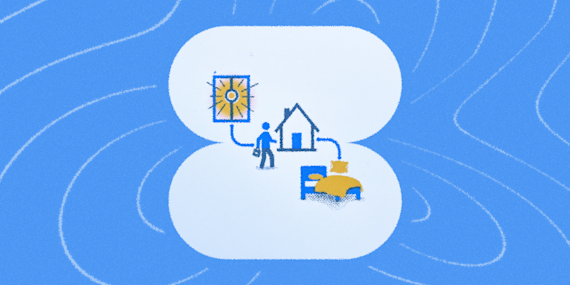
How to get your bedroom ready the moment you get home
-
Smart home
How to build a gentle wake-up routine with smart lights and your thermostat

-
Lifestyle
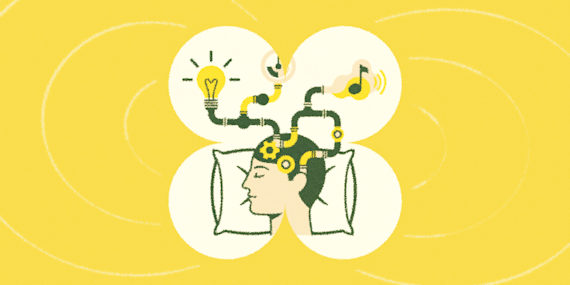
How to automate your bedtime routine with smart lights, thermostat, and music
More on LIFX and Thinka Integration
About LIFX
LIFX is a multi-color smart WiFi-enabled LED lightbulb. For more information on how to use our IFTTT integration, please visit ift.tt/lifx
About Thinka Integration
With Thinka connected to your smart home devices, you can control all those devices with the applications Apple Home, Google Assistant, Amazon Alexa and Olisto in your smart phones from the couch or while out of the house