









Smart Home Solution Smoke Detected Triggers Reolink Camera Recording
1 ready-made Reolink and Smart Home Solution Applets
Turn one on, or build your own. Reolink can start an automation with "Animal Detected", and IFTTT can then run "Change brightness of bulb" on Smart Home Solution.
Automate Reolink and Smart Home Solution from your AI assistant
Have Claude, ChatGPT, or Cursor build and run Reolink and Smart Home Solution automations for you, like “Smart Home Solution Smoke Detected Triggers Reolink Camera Recording”, with IFTTT MCP.
Set up IFTTT MCP


Create your own Reolink and Smart Home Solution workflow
Create custom workflows effortlessly by selecting triggers, queries, and actions. With IFTTT, it's simple: “If this” trigger happens, “then that” action follows. Streamline tasks and save time with automated workflows that work for you.
46 triggers, queries, and actions
Alarm breached
Polling trigger
Polling Applets run after IFTTT reaches out to the trigger service and finds a new trigger event. These trigger checks occur every hour on Free, every 15 minutes on Starter, and every 5 minutes on Pro and Pro+.
This trigger fires when the alarm in the house is breached, requires a subscription with alarm functionality.
Animal Detected
Polling trigger
Polling Applets run after IFTTT reaches out to the trigger service and finds a new trigger event. These trigger checks occur every hour on Free, every 15 minutes on Starter, and every 5 minutes on Pro and Pro+.
This trigger fires when a Reolink Cam or Doorbell detects pet.
At least one person arrives home
Polling trigger
Polling Applets run after IFTTT reaches out to the trigger service and finds a new trigger event. These trigger checks occur every hour on Free, every 15 minutes on Starter, and every 5 minutes on Pro and Pro+.
This trigger fires when at least one family member has come home.
Battery report received
Polling trigger
Polling Applets run after IFTTT reaches out to the trigger service and finds a new trigger event. These trigger checks occur every hour on Free, every 15 minutes on Starter, and every 5 minutes on Pro and Pro+.
This trigger fires when a specific device reports its battery level.
Brightness changed on bulb
Polling trigger
Polling Applets run after IFTTT reaches out to the trigger service and finds a new trigger event. These trigger checks occur every hour on Free, every 15 minutes on Starter, and every 5 minutes on Pro and Pro+.
This trigger fires when a specific light bulb changes brightness.
Color changed on bulb
Polling trigger
Polling Applets run after IFTTT reaches out to the trigger service and finds a new trigger event. These trigger checks occur every hour on Free, every 15 minutes on Starter, and every 5 minutes on Pro and Pro+.
This trigger fires when a specific light bulb changes color.
Crying Detected
Polling trigger
Polling Applets run after IFTTT reaches out to the trigger service and finds a new trigger event. These trigger checks occur every hour on Free, every 15 minutes on Starter, and every 5 minutes on Pro and Pro+.
This trigger fires when a Reolink Cam or Doorbell detects a crying sound.
Device turned off
Polling trigger
Polling Applets run after IFTTT reaches out to the trigger service and finds a new trigger event. These trigger checks occur every hour on Free, every 15 minutes on Starter, and every 5 minutes on Pro and Pro+.
This trigger fires when a specific device is turned off.
Device turned on
Polling trigger
Polling Applets run after IFTTT reaches out to the trigger service and finds a new trigger event. These trigger checks occur every hour on Free, every 15 minutes on Starter, and every 5 minutes on Pro and Pro+.
This trigger fires when a specific device is turned on.
Door closed
Polling trigger
Polling Applets run after IFTTT reaches out to the trigger service and finds a new trigger event. These trigger checks occur every hour on Free, every 15 minutes on Starter, and every 5 minutes on Pro and Pro+.
This trigger fires when a specific door closes.
Door locked
Polling trigger
Polling Applets run after IFTTT reaches out to the trigger service and finds a new trigger event. These trigger checks occur every hour on Free, every 15 minutes on Starter, and every 5 minutes on Pro and Pro+.
This trigger fires when a specific door is locked.
Door opened
Polling trigger
Polling Applets run after IFTTT reaches out to the trigger service and finds a new trigger event. These trigger checks occur every hour on Free, every 15 minutes on Starter, and every 5 minutes on Pro and Pro+.
This trigger fires when a specific door opens.
History of battery report received

Query
A query lets your Applet retrieve extra data that isn't included in the trigger, so that your automation can include more complete or useful information.
This query returns a list of when a specific device reports its battery level.
History of color changes on bulb
Query
A query lets your Applet retrieve extra data that isn't included in the trigger, so that your automation can include more complete or useful information.
This query returns a list of when a specific light bulb changes color.
History of device turned off
Query
A query lets your Applet retrieve extra data that isn't included in the trigger, so that your automation can include more complete or useful information.
This query returns a list of when a specific device was turned off.
History of door locked
Query
A query lets your Applet retrieve extra data that isn't included in the trigger, so that your automation can include more complete or useful information.
This query returns a list of when a specific door was locked.
History of everyone has gone to sleep
Query
A query lets your Applet retrieve extra data that isn't included in the trigger, so that your automation can include more complete or useful information.
This query returns a list of when everyone was gone to sleep.
History of when the alarm triggered
Query
A query lets your Applet retrieve extra data that isn't included in the trigger, so that your automation can include more complete or useful information.
This query returns a list of when the alarm in the house was breached, requires a subscription with alarm functionality.
Activate floodlight alarm
Action
An action is the task your Applet carries out after the trigger occurs. It defines what happens as the result of your automation and completes the workflow.
This action will turn on floodlight to alarm on your selected device.
Activate siren alarm once
Action
An action is the task your Applet carries out after the trigger occurs. It defines what happens as the result of your automation and completes the workflow.
This action will activate siren alarm once on your selected device.
Change brightness of bulb
Action
An action is the task your Applet carries out after the trigger occurs. It defines what happens as the result of your automation and completes the workflow.
This action will change the brightness of a bulb given a name.
Change color of bulb
Action
An action is the task your Applet carries out after the trigger occurs. It defines what happens as the result of your automation and completes the workflow.
This action will change the color of a bulb given a name.
Lock door
Action
An action is the task your Applet carries out after the trigger occurs. It defines what happens as the result of your automation and completes the workflow.
This action will lock a specific door.
Record a video clip
Action
An action is the task your Applet carries out after the trigger occurs. It defines what happens as the result of your automation and completes the workflow.
This action will record for 15s on your selected device.
Ring once
Action
An action is the task your Applet carries out after the trigger occurs. It defines what happens as the result of your automation and completes the workflow.
This action will ring once through your Home Hub/Home Hub Pro.
Turn alarm off
Action
An action is the task your Applet carries out after the trigger occurs. It defines what happens as the result of your automation and completes the workflow.
This action will turn off the alarm in your house, this requires a subscription with alarm functionality.
Turn alarm on
Action
An action is the task your Applet carries out after the trigger occurs. It defines what happens as the result of your automation and completes the workflow.
This action will turn on the alarm in your house, this requires a subscription with alarm functionality.
Turn device off
Action
An action is the task your Applet carries out after the trigger occurs. It defines what happens as the result of your automation and completes the workflow.
This action will turn a device off given a name.
Turn device on
Action
An action is the task your Applet carries out after the trigger occurs. It defines what happens as the result of your automation and completes the workflow.
This action will turn a device on given a name.
Turn on/off privacy mode
Action
An action is the task your Applet carries out after the trigger occurs. It defines what happens as the result of your automation and completes the workflow.
This action will turn on/off privacy mode on your selected device.
Activate floodlight alarm
Action
An action is the task your Applet carries out after the trigger occurs. It defines what happens as the result of your automation and completes the workflow.
This action will turn on floodlight to alarm on your selected device.
Activate siren alarm once
Action
An action is the task your Applet carries out after the trigger occurs. It defines what happens as the result of your automation and completes the workflow.
This action will activate siren alarm once on your selected device.
Alarm breached
Polling trigger
Polling Applets run after IFTTT reaches out to the trigger service and finds a new trigger event. These trigger checks occur every hour on Free, every 15 minutes on Starter, and every 5 minutes on Pro and Pro+.
This trigger fires when the alarm in the house is breached, requires a subscription with alarm functionality.
Animal Detected
Polling trigger
Polling Applets run after IFTTT reaches out to the trigger service and finds a new trigger event. These trigger checks occur every hour on Free, every 15 minutes on Starter, and every 5 minutes on Pro and Pro+.
This trigger fires when a Reolink Cam or Doorbell detects pet.
At least one person arrives home
Polling trigger
Polling Applets run after IFTTT reaches out to the trigger service and finds a new trigger event. These trigger checks occur every hour on Free, every 15 minutes on Starter, and every 5 minutes on Pro and Pro+.
This trigger fires when at least one family member has come home.
Battery report received
Polling trigger
Polling Applets run after IFTTT reaches out to the trigger service and finds a new trigger event. These trigger checks occur every hour on Free, every 15 minutes on Starter, and every 5 minutes on Pro and Pro+.
This trigger fires when a specific device reports its battery level.
Brightness changed on bulb
Polling trigger
Polling Applets run after IFTTT reaches out to the trigger service and finds a new trigger event. These trigger checks occur every hour on Free, every 15 minutes on Starter, and every 5 minutes on Pro and Pro+.
This trigger fires when a specific light bulb changes brightness.
Change brightness of bulb
Action
An action is the task your Applet carries out after the trigger occurs. It defines what happens as the result of your automation and completes the workflow.
This action will change the brightness of a bulb given a name.
Change color of bulb
Action
An action is the task your Applet carries out after the trigger occurs. It defines what happens as the result of your automation and completes the workflow.
This action will change the color of a bulb given a name.
Color changed on bulb
Polling trigger
Polling Applets run after IFTTT reaches out to the trigger service and finds a new trigger event. These trigger checks occur every hour on Free, every 15 minutes on Starter, and every 5 minutes on Pro and Pro+.
This trigger fires when a specific light bulb changes color.
Crying Detected
Polling trigger
Polling Applets run after IFTTT reaches out to the trigger service and finds a new trigger event. These trigger checks occur every hour on Free, every 15 minutes on Starter, and every 5 minutes on Pro and Pro+.
This trigger fires when a Reolink Cam or Doorbell detects a crying sound.
Device turned off
Polling trigger
Polling Applets run after IFTTT reaches out to the trigger service and finds a new trigger event. These trigger checks occur every hour on Free, every 15 minutes on Starter, and every 5 minutes on Pro and Pro+.
This trigger fires when a specific device is turned off.
Build an automation in seconds!
If
Select a trigger the automation will use
Alarm breached
 Animal Detected
At least one person arrives home
Battery report received
Brightness changed on bulb
Color changed on bulb
Crying Detected
Device turned off
Device turned on
Door closed
Door locked
Door opened
Door unlocked
Glass breakage detected
Luminance report received
Motion Detected
Motion detected
Package Detected
Person Detected
Smoke detected
Temperature reading received
Vehicle Detected
Visitor Detected
Water leak detected
We detect that everyone has gone to sleep
We detect that someone has woken up
We detect that the home is empty
Animal Detected
At least one person arrives home
Battery report received
Brightness changed on bulb
Color changed on bulb
Crying Detected
Device turned off
Device turned on
Door closed
Door locked
Door opened
Door unlocked
Glass breakage detected
Luminance report received
Motion Detected
Motion detected
Package Detected
Person Detected
Smoke detected
Temperature reading received
Vehicle Detected
Visitor Detected
Water leak detected
We detect that everyone has gone to sleep
We detect that someone has woken up
We detect that the home is empty
Then
Select an action the automation will perform
Activate floodlight alarm
Activate siren alarm once
Change brightness of bulb
Change color of bulb
Lock door
Record a video clip
Ring once
Turn alarm off
Turn alarm on
Turn device off
Turn device on
Turn on/off privacy mode
Unlock door
You can add delays, queries, and more actions in the chat.
GET STARTED
How to connect to a Reolink automation
Find an Applet using Reolink and Smart Home Solution
Find an automation to connect to, or create your own!Connect IFTTT to your accounts
Securely connect the Applet services to your respective accounts.Finalize and customize your Applet
Review trigger and action settings, and click connect. Simple as that!Make more happen with your credits
-

More credits, more possibilities
Get more credits per month to power more automation activity. -
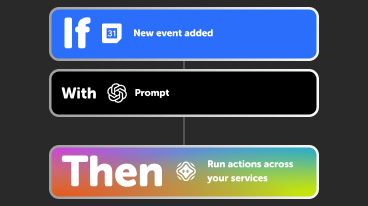
Power more advanced automations
Use credits to power your automations, including actions that require more processing. -

Access faster speeds and higher rate limits
Get faster updates and more actions with increased rate limits and more frequent checks.
Reolink and Smart Home Solution tips, tools, and resources
More on Reolink and Smart Home Solution
About Reolink
With IFTTT, unleash the smart power of your Reolink ecosystem—from advanced video doorbells and PoE/WiFi cameras to intelligent NVRs and home hubs. Automate responses to key events such as motion alerts, person/vehicle detection, or doorbell rings, and build tailored Applets that link Reolink seamlessly with other smart home products. Boost your home's protection, daily convenience, and quick response—all with zero added hassle.
About Smart Home Solution
Control your home system with the Smart Home Solution provided by A1 Telekom Austria Group. It is the first smart system for homes that senses with a geo-aware app when the last person leaves the house arms the alarm system and turns down the temperature to save energy. With its fully automatic and self-learning control mechanism, Smart Home Solution not only makes everyday life easier, it makes your home more safe and comfortable.