









Heat your AC when Netatmo temperature drops below a threshold
Other popular NetHome Plus AC workflows and automations
-
-
-
Set NetHome Plus AC fan speed on a daily schedule
 1
1
-
-
Cool your home automatically when temperature rises above a set point
3
-
-
Turn on NetHome Plus AC when eWeLink temperature exceeds threshold
2
-
-
Turn on and set AC when receiving a Webhook event
-
-
Turn off NetHome Plus AC when temperature drops below a threshold
-
-
Turn off NetHome Plus AC when Aqara window or door opens
-
-
Set NetHome Plus AC mode when Webhook event received
-
-
Turn on NetHome Plus AC when August lock is unlocked
-







Automate NetHome Plus AC and iOS Calendar from your AI assistant
Ask Claude to create NetHome Plus AC applets and control your Midea air conditioner from your AI assistant with IFTTT MCP.
Set up IFTTT MCP


Create your own NetHome Plus AC and iOS Calendar workflow
Create custom workflows effortlessly by selecting triggers, queries, and actions. With IFTTT, it's simple: “If this” trigger happens, “then that” action follows. Streamline tasks and save time with automated workflows that work for you.
10 triggers, queries, and actions
New event added from search
Polling trigger
Polling Applets run after IFTTT reaches out to the trigger service and finds a new trigger event. These trigger checks occur every hour on Free, every 15 minutes on Starter, and every 5 minutes on Pro and Pro+.
This trigger fires every time a new event is added to any of your calendars that contains a specific keyword or phrase. The search looks at all of the attributes associated with an event, including title, location, notes, and invitees.
New event added to any calendar
Polling trigger
Polling Applets run after IFTTT reaches out to the trigger service and finds a new trigger event. These trigger checks occur every hour on Free, every 15 minutes on Starter, and every 5 minutes on Pro and Pro+.
This trigger fires every time a new event is added to any of your calendars.
New event added to specific calendar
Polling trigger
Polling Applets run after IFTTT reaches out to the trigger service and finds a new trigger event. These trigger checks occur every hour on Free, every 15 minutes on Starter, and every 5 minutes on Pro and Pro+.
This trigger fires every time a new event is added to the calendar that you specify.
Create a calendar event
Action
An action is the task your Applet carries out after the trigger occurs. It defines what happens as the result of your automation and completes the workflow.
This action creates a new event in the calendar you specify.
Set Fan speed
Action
An action is the task your Applet carries out after the trigger occurs. It defines what happens as the result of your automation and completes the workflow.
This ACTION sets the fan to the desired speed (Auto,Low, Medium, High).
Set operating mode
Action
An action is the task your Applet carries out after the trigger occurs. It defines what happens as the result of your automation and completes the workflow.
This ACTION will set the air conditioner to the designated operating mode.
Set Temperature
Action
An action is the task your Applet carries out after the trigger occurs. It defines what happens as the result of your automation and completes the workflow.
This ACTION will change the air conditioner temperature setpoint.
Turn on/off the air conditioner
Action
An action is the task your Applet carries out after the trigger occurs. It defines what happens as the result of your automation and completes the workflow.
This ACTION will turn on/off the air conditioner.
Turn on/off windSwingLR
Action
An action is the task your Applet carries out after the trigger occurs. It defines what happens as the result of your automation and completes the workflow.
This ACTION will turn on/off the left/right wind of the air conditioner
Turn on/off windSwingUD
Action
An action is the task your Applet carries out after the trigger occurs. It defines what happens as the result of your automation and completes the workflow.
This ACTION will turn on or off the up and down wind of the air conditioner
Create a calendar event
Action
An action is the task your Applet carries out after the trigger occurs. It defines what happens as the result of your automation and completes the workflow.
This action creates a new event in the calendar you specify.
New event added from search
Polling trigger
Polling Applets run after IFTTT reaches out to the trigger service and finds a new trigger event. These trigger checks occur every hour on Free, every 15 minutes on Starter, and every 5 minutes on Pro and Pro+.
This trigger fires every time a new event is added to any of your calendars that contains a specific keyword or phrase. The search looks at all of the attributes associated with an event, including title, location, notes, and invitees.
New event added to any calendar
Polling trigger
Polling Applets run after IFTTT reaches out to the trigger service and finds a new trigger event. These trigger checks occur every hour on Free, every 15 minutes on Starter, and every 5 minutes on Pro and Pro+.
This trigger fires every time a new event is added to any of your calendars.
New event added to specific calendar
Polling trigger
Polling Applets run after IFTTT reaches out to the trigger service and finds a new trigger event. These trigger checks occur every hour on Free, every 15 minutes on Starter, and every 5 minutes on Pro and Pro+.
This trigger fires every time a new event is added to the calendar that you specify.
Set Fan speed
Action
An action is the task your Applet carries out after the trigger occurs. It defines what happens as the result of your automation and completes the workflow.
This ACTION sets the fan to the desired speed (Auto,Low, Medium, High).
Set operating mode
Action
An action is the task your Applet carries out after the trigger occurs. It defines what happens as the result of your automation and completes the workflow.
This ACTION will set the air conditioner to the designated operating mode.
Set Temperature
Action
An action is the task your Applet carries out after the trigger occurs. It defines what happens as the result of your automation and completes the workflow.
This ACTION will change the air conditioner temperature setpoint.
Turn on/off the air conditioner
Action
An action is the task your Applet carries out after the trigger occurs. It defines what happens as the result of your automation and completes the workflow.
This ACTION will turn on/off the air conditioner.
Turn on/off windSwingLR
Action
An action is the task your Applet carries out after the trigger occurs. It defines what happens as the result of your automation and completes the workflow.
This ACTION will turn on/off the left/right wind of the air conditioner
Turn on/off windSwingUD
Action
An action is the task your Applet carries out after the trigger occurs. It defines what happens as the result of your automation and completes the workflow.
This ACTION will turn on or off the up and down wind of the air conditioner
Build an automation in seconds!
If

Select a trigger the automation will use
New event added from search
New event added to any calendar
New event added to specific calendar
Then
Select an action the automation will perform
Create a calendar event
 Set Fan speed
Set operating mode
Set Temperature
Turn on/off the air conditioner
Turn on/off windSwingLR
Turn on/off windSwingUD
Set Fan speed
Set operating mode
Set Temperature
Turn on/off the air conditioner
Turn on/off windSwingLR
Turn on/off windSwingUD
You can add delays, queries, and more actions in the chat.
GET STARTED
How to connect to a NetHome Plus AC automation
Find an Applet using NetHome Plus AC and iOS Calendar
Find an automation to connect to, or create your own!Connect IFTTT to your accounts
Securely connect the Applet services to your respective accounts.Finalize and customize your Applet
Review trigger and action settings, and click connect. Simple as that!Upgrade your automations with
-
Connect to more Applets
Connect up to 20 automations with Pro, and unlimited automations with Pro+ -
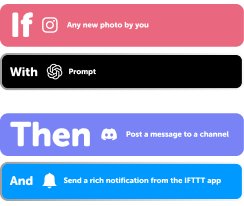
Add multiple actions with exclusive services
Add real-time data and multiple actions for smarter automations -
Get access to faster speeds
Get faster updates and more actions with higher rate limits and quicker checks
More on NetHome Plus AC and iOS Calendar
About NetHome Plus AC
NetHome Plus AC and IFTTT let you automate your Midea air conditioner with triggers from your other connected devices.
About iOS Calendar
iOS Calendar and IFTTT let you automatically create events and trigger automations when new calendar entries appear.