









Run a Raylogic GO scene when air-Q crosses threshold
Other popular air-Q workflows and automations
-
-
-
Close GO by Raylogic blinds when air-Q threshold is crossed
-
-
Send a notification when air-Q sensor value exceeds threshold
-
-
Add a Google Calendar event when air-Q sensor reading exceeds threshold
-
-
Adjust VMC Italia speed when air-Q detects poor air quality
-
-
Turn on GO by Raylogic devices when air-Q threshold is crossed
-
-
Dim GO by Raylogic lights when air-Q threshold is crossed
-
-
Adjust Midea AC temperature when air-Q sensor hits threshold
-
-
Turn on GO by Raylogic HVAC when air-Q threshold is crossed
-





Automate air-Q and PowerView® Automation (Legacy) from your AI assistant
Ask Cursor to create air-Q applets that trigger when your air quality hits certain levels, right from your AI assistant, with IFTTT MCP.
Set up IFTTT MCP


Create your own air-Q and PowerView® Automation (Legacy) workflow
Create custom workflows effortlessly by selecting triggers, queries, and actions. With IFTTT, it's simple: “If this” trigger happens, “then that” action follows. Streamline tasks and save time with automated workflows that work for you.
6 triggers, queries, and actions
Sensor measurement above/below the defined threshold
Polling trigger
Polling Applets run after IFTTT reaches out to the trigger service and finds a new trigger event. These trigger checks occur every hour on Free, every 15 minutes on Starter, and every 5 minutes on Pro and Pro+.
This trigger fires when a sensor you select detects a value above, at, or below the threshold you set of the selected device.
Sensor value

Query
A query lets your Applet retrieve extra data that isn't included in the trigger, so that your automation can include more complete or useful information.
This query returns the current value of a given sensor
Activate Multiple Room Scene
Action
An action is the task your Applet carries out after the trigger occurs. It defines what happens as the result of your automation and completes the workflow.
This Action will activate a Multiple Room Scene.
Activate Scene
Action
An action is the task your Applet carries out after the trigger occurs. It defines what happens as the result of your automation and completes the workflow.
This Action will activate an individual Room Scene.
Turn off all Schedules
Action
An action is the task your Applet carries out after the trigger occurs. It defines what happens as the result of your automation and completes the workflow.
This Action will globally disable all Scheduled Scenes.
Turn on all Schedules
Action
An action is the task your Applet carries out after the trigger occurs. It defines what happens as the result of your automation and completes the workflow.
This Action will globally enable all Scheduled Scenes.
Activate Multiple Room Scene
Action
An action is the task your Applet carries out after the trigger occurs. It defines what happens as the result of your automation and completes the workflow.
This Action will activate a Multiple Room Scene.
Activate Scene
Action
An action is the task your Applet carries out after the trigger occurs. It defines what happens as the result of your automation and completes the workflow.
This Action will activate an individual Room Scene.
Sensor measurement above/below the defined threshold
Polling trigger
Polling Applets run after IFTTT reaches out to the trigger service and finds a new trigger event. These trigger checks occur every hour on Free, every 15 minutes on Starter, and every 5 minutes on Pro and Pro+.
This trigger fires when a sensor you select detects a value above, at, or below the threshold you set of the selected device.
Sensor value
Query
A query lets your Applet retrieve extra data that isn't included in the trigger, so that your automation can include more complete or useful information.
This query returns the current value of a given sensor
Turn off all Schedules
Action
An action is the task your Applet carries out after the trigger occurs. It defines what happens as the result of your automation and completes the workflow.
This Action will globally disable all Scheduled Scenes.
Turn on all Schedules
Action
An action is the task your Applet carries out after the trigger occurs. It defines what happens as the result of your automation and completes the workflow.
This Action will globally enable all Scheduled Scenes.
Build an automation in seconds!
If
Select a trigger the automation will use
Sensor measurement above/below the defined threshold
Then
Select an action the automation will perform
Activate Multiple Room Scene
Activate Scene
Turn off all Schedules
Turn on all Schedules
You can add delays, queries, and more actions in the chat.
GET STARTED
How to connect to a air-Q automation
Find an Applet using air-Q and PowerView® Automation (Legacy)
Find an automation to connect to, or create your own!Connect IFTTT to your accounts
Securely connect the Applet services to your respective accounts.Finalize and customize your Applet
Review trigger and action settings, and click connect. Simple as that!Upgrade your automations with
-
Connect to more Applets
Connect up to 20 automations with Pro, and unlimited automations with Pro+ -
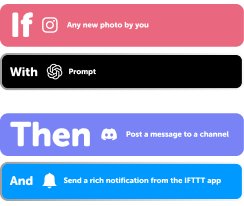
Add multiple actions with exclusive services
Add real-time data and multiple actions for smarter automations -
Get access to faster speeds
Get faster updates and more actions with higher rate limits and quicker checks
More on air-Q and PowerView® Automation (Legacy)
About air-Q
Use your air-Q device to watch your air and connect to other devices in your home. Please check this guide for details
About PowerView® Automation (Legacy)
Intelligent Shades That Simplify Your Life. Imagine a world where window treatments adjust to your needs, creating the perfect room ambiance morning, noon and night. That’s the beauty of PowerView® Automation from Hunter Douglas. Compatible with Legacy PowerView Automation only. Not compatible with PowerView Gen 3 Automation.