









Send Robolinho® home when it starts raining
5 ready-made AL-KO Smart Garden and Weather Underground Applets
Turn one on, or build your own. Weather Underground can start an automation with "Current condition changes to", and IFTTT can then run "Activate Robolinho® eco-Mode" on AL-KO Smart Garden.-
 622
622
-
-
Send Robolinho home at sunset
37
-
-
Start Robolinho® mowing at sunrise via Weather Underground
15
-
-
Skip today's AL-KO mowing windows when it rains
4
-
-
Send Robolinho mower home when it starts raining
-


Automate AL-KO Smart Garden and Weather Underground from your AI assistant
Ask ChatGPT to create AL-KO Smart Garden applets for you, right from your AI assistant, with IFTTT MCP.
Set up IFTTT MCP


Create your own AL-KO Smart Garden and Weather Underground workflow
Create custom workflows effortlessly by selecting triggers, queries, and actions. With IFTTT, it's simple: “If this” trigger happens, “then that” action follows. Streamline tasks and save time with automated workflows that work for you.
48 triggers, queries, and actions
Current condition changes to
Polling trigger
Polling Applets run after IFTTT reaches out to the trigger service and finds a new trigger event. These trigger checks occur every hour on Free, every 15 minutes on Starter, and every 5 minutes on Pro and Pro+.
This Trigger monitors changes in the current weather condition. When one of those conditions is met the Trigger fires. Currently only these simple conditions are supported: Rain, Snow, Cloudy, Clear.
Current humidity level rises above
Polling trigger
Polling Applets run after IFTTT reaches out to the trigger service and finds a new trigger event. These trigger checks occur every hour on Free, every 15 minutes on Starter, and every 5 minutes on Pro and Pro+.
This Trigger monitors your local humidity and fires every time the humidity rises above the value you specify.
Current pollen count rises above
Polling trigger
Polling Applets run after IFTTT reaches out to the trigger service and finds a new trigger event. These trigger checks occur every hour on Free, every 15 minutes on Starter, and every 5 minutes on Pro and Pro+.
This Trigger monitors your local pollen levels and fires every time the pollen count rises above the value you specify (1-12). NOTE: Available only in the USA.
Current temperature drops below
Polling trigger
Polling Applets run after IFTTT reaches out to the trigger service and finds a new trigger event. These trigger checks occur every hour on Free, every 15 minutes on Starter, and every 5 minutes on Pro and Pro+.
This Trigger monitors your local temperature and fires whenever the temperature drops below the value you provide.
Current temperature rises above
Polling trigger
Polling Applets run after IFTTT reaches out to the trigger service and finds a new trigger event. These trigger checks occur every hour on Free, every 15 minutes on Starter, and every 5 minutes on Pro and Pro+.
This Trigger monitors your local temperature and fires whenever the temperature rises above the value you provide.
Current UV index rises above
Polling trigger
Polling Applets run after IFTTT reaches out to the trigger service and finds a new trigger event. These trigger checks occur every hour on Free, every 15 minutes on Starter, and every 5 minutes on Pro and Pro+.
This Trigger monitors your local UV levels and fires every time the UV index rises above the value you specify (0-16).
Robolinho has detected rain
Polling trigger
Polling Applets run after IFTTT reaches out to the trigger service and finds a new trigger event. These trigger checks occur every hour on Free, every 15 minutes on Starter, and every 5 minutes on Pro and Pro+.
Your Robolinho device has detected rain with its built-in rain sensor
Robolinho® has arrived at the base station
Polling trigger
Polling Applets run after IFTTT reaches out to the trigger service and finds a new trigger event. These trigger checks occur every hour on Free, every 15 minutes on Starter, and every 5 minutes on Pro and Pro+.
This trigger fires when your AL-KO Robolinho® has arrived at the base station
Robolinho® has lost WiFi connection (is offline)
Polling trigger
Polling Applets run after IFTTT reaches out to the trigger service and finds a new trigger event. These trigger checks occur every hour on Free, every 15 minutes on Starter, and every 5 minutes on Pro and Pro+.
This trigger fires when your Robolinho® has lost WiFi connection (is offline)
Robolinho® has reached full battery level (100%)
Polling trigger
Polling Applets run after IFTTT reaches out to the trigger service and finds a new trigger event. These trigger checks occur every hour on Free, every 15 minutes on Starter, and every 5 minutes on Pro and Pro+.
This trigger fires when the Robolinho® has reached full battery level (battery level 100%)
Robolinho® has started mowing
Polling trigger
Polling Applets run after IFTTT reaches out to the trigger service and finds a new trigger event. These trigger checks occur every hour on Free, every 15 minutes on Starter, and every 5 minutes on Pro and Pro+.
This trigger fires when your AL-KO Robolinho® has start mowing
Robolinho® reports an error
Polling trigger
Polling Applets run after IFTTT reaches out to the trigger service and finds a new trigger event. These trigger checks occur every hour on Free, every 15 minutes on Starter, and every 5 minutes on Pro and Pro+.
The trigger fires when your AL-KO Robolinho® reports an error
Current weather

Query
A query lets your Applet retrieve extra data that isn't included in the trigger, so that your automation can include more complete or useful information.
Get the current weather
History of humidity level rose above threshold
Query
A query lets your Applet retrieve extra data that isn't included in the trigger, so that your automation can include more complete or useful information.
This query monitors your local humidity and returns a list of times when the humidity rose above the value you specified. Note: this query will only return future events after this Applet is created.
History of pollen count rose above threshold
Query
A query lets your Applet retrieve extra data that isn't included in the trigger, so that your automation can include more complete or useful information.
This query monitors your local pollen levels and returns a list of times when the pollen count rose above the value you specified (1-12). NOTE: Available only in the USA. Note: this query will only return future events after this Applet is created.
History of Robolinho® has lost WiFi connection (is offline)
Query
A query lets your Applet retrieve extra data that isn't included in the trigger, so that your automation can include more complete or useful information.
This query returns a list of when your Robolinho® was lost WiFi connection (is offline).
History of Robolinho® needs new blades
Query
A query lets your Applet retrieve extra data that isn't included in the trigger, so that your automation can include more complete or useful information.
This query returns a list of when the blades of the Robolinho® are not sharp any more.
History of specified forecast conditions
Query
A query lets your Applet retrieve extra data that isn't included in the trigger, so that your automation can include more complete or useful information.
This query returns a list of times when the forecasted weather changed to meet a specific condition (Rain, Snow, Cloudy, or Clear).
History of specified weather conditions
Query
A query lets your Applet retrieve extra data that isn't included in the trigger, so that your automation can include more complete or useful information.
This query returns a list of times when the observed weather changed to meet a specific condition (Rain, Snow, Cloudy, or Clear).
History of Sunrises
Query
A query lets your Applet retrieve extra data that isn't included in the trigger, so that your automation can include more complete or useful information.
This query returns a history of sunrises in your location. Note: this query will only return future events after this Applet is created.
History of Sunsets
Query
A query lets your Applet retrieve extra data that isn't included in the trigger, so that your automation can include more complete or useful information.
This query returns a history of sunsets at your location.
History of temperature dropped below threshold
Query
A query lets your Applet retrieve extra data that isn't included in the trigger, so that your automation can include more complete or useful information.
This query monitors your local temperature and returns a list of times when the temperature dropped below the value you provide. Note: this query will only return future events after this Applet is created.
History of temperature rose above threshold
Query
A query lets your Applet retrieve extra data that isn't included in the trigger, so that your automation can include more complete or useful information.
This query monitors your local temperature and returns a list of times when the temperature rose above the value you provided. Note: this query will only return future events after this Applet is created.
History of Tomorrow's Forecast drops below alerts
Query
A query lets your Applet retrieve extra data that isn't included in the trigger, so that your automation can include more complete or useful information.
This query returns a list of alerts when tomorrows forecasted low temperature dropped below a value you provided. Note: this query will only return future events after this Applet is created.
Activate Robolinho® eco-Mode
Action
An action is the task your Applet carries out after the trigger occurs. It defines what happens as the result of your automation and completes the workflow.
This action will activate the eco-Mode of your Robolinho®. With an activated eco-Mode the blade-engine rotates slower which makes the Robolinho® even more quiet and reduces the power drain.
Activate Robolinho® rain sensor
Action
An action is the task your Applet carries out after the trigger occurs. It defines what happens as the result of your automation and completes the workflow.
This action will activate the rain sensor of your Robolinho®. With an activated rain sensor the Robolinho® can detect rain and delay its duty until rain has stopped.
Deactivate Robolinho® eco-Mode
Action
An action is the task your Applet carries out after the trigger occurs. It defines what happens as the result of your automation and completes the workflow.
This action will deactivate the eco-Mode of your Robolinho®.
With an activated eco-Mode the blade engine rotates slower which makes the Robolinho® even more quiet and reduces the power drain.
Deactivate Robolinho® rain sensor
Action
An action is the task your Applet carries out after the trigger occurs. It defines what happens as the result of your automation and completes the workflow.
This action will deactivate the rain sensor of your Robolinho®. With an activated rain sensor the Robolinho® can detect rain and delay its duty until rain has stopped.
Send Robolinho® home to base station (stop mowing)
Action
An action is the task your Applet carries out after the trigger occurs. It defines what happens as the result of your automation and completes the workflow.
This action will send your AL-KO Robolinho® back home to the base station (stop mowing)
Skip today's mowing windows
Action
An action is the task your Applet carries out after the trigger occurs. It defines what happens as the result of your automation and completes the workflow.
Skips every following mowing window for today
Start Robolinho® (start mowing)
Action
An action is the task your Applet carries out after the trigger occurs. It defines what happens as the result of your automation and completes the workflow.
This action will start your Robolinho® (start mowing)
Stop Robolinho® (pause mowing)
Action
An action is the task your Applet carries out after the trigger occurs. It defines what happens as the result of your automation and completes the workflow.
This action will stop your AL-KO Robolinho®, as like as you press stop on the device itself.
Toggle Robolinho® start / stop (mowing / pause)
Action
An action is the task your Applet carries out after the trigger occurs. It defines what happens as the result of your automation and completes the workflow.
This action will start your Robolinho® if he is not mowing already. But if your Robolinho® is already mowing he will be stopped. The action is useful for example when you want to just switch between mowing and stop using a buzzer-like button.
Activate Robolinho® eco-Mode
Action
An action is the task your Applet carries out after the trigger occurs. It defines what happens as the result of your automation and completes the workflow.
This action will activate the eco-Mode of your Robolinho®. With an activated eco-Mode the blade-engine rotates slower which makes the Robolinho® even more quiet and reduces the power drain.
Activate Robolinho® rain sensor
Action
An action is the task your Applet carries out after the trigger occurs. It defines what happens as the result of your automation and completes the workflow.
This action will activate the rain sensor of your Robolinho®. With an activated rain sensor the Robolinho® can detect rain and delay its duty until rain has stopped.
Current condition changes to
Polling trigger
Polling Applets run after IFTTT reaches out to the trigger service and finds a new trigger event. These trigger checks occur every hour on Free, every 15 minutes on Starter, and every 5 minutes on Pro and Pro+.
This Trigger monitors changes in the current weather condition. When one of those conditions is met the Trigger fires. Currently only these simple conditions are supported: Rain, Snow, Cloudy, Clear.
Current humidity level rises above
Polling trigger
Polling Applets run after IFTTT reaches out to the trigger service and finds a new trigger event. These trigger checks occur every hour on Free, every 15 minutes on Starter, and every 5 minutes on Pro and Pro+.
This Trigger monitors your local humidity and fires every time the humidity rises above the value you specify.
Current pollen count rises above
Polling trigger
Polling Applets run after IFTTT reaches out to the trigger service and finds a new trigger event. These trigger checks occur every hour on Free, every 15 minutes on Starter, and every 5 minutes on Pro and Pro+.
This Trigger monitors your local pollen levels and fires every time the pollen count rises above the value you specify (1-12). NOTE: Available only in the USA.
Current temperature drops below
Polling trigger
Polling Applets run after IFTTT reaches out to the trigger service and finds a new trigger event. These trigger checks occur every hour on Free, every 15 minutes on Starter, and every 5 minutes on Pro and Pro+.
This Trigger monitors your local temperature and fires whenever the temperature drops below the value you provide.
Current temperature rises above
Polling trigger
Polling Applets run after IFTTT reaches out to the trigger service and finds a new trigger event. These trigger checks occur every hour on Free, every 15 minutes on Starter, and every 5 minutes on Pro and Pro+.
This Trigger monitors your local temperature and fires whenever the temperature rises above the value you provide.
Current UV index rises above
Polling trigger
Polling Applets run after IFTTT reaches out to the trigger service and finds a new trigger event. These trigger checks occur every hour on Free, every 15 minutes on Starter, and every 5 minutes on Pro and Pro+.
This Trigger monitors your local UV levels and fires every time the UV index rises above the value you specify (0-16).
Current weather
Query
A query lets your Applet retrieve extra data that isn't included in the trigger, so that your automation can include more complete or useful information.
Get the current weather
Deactivate Robolinho® eco-Mode
Action
An action is the task your Applet carries out after the trigger occurs. It defines what happens as the result of your automation and completes the workflow.
This action will deactivate the eco-Mode of your Robolinho®.
With an activated eco-Mode the blade engine rotates slower which makes the Robolinho® even more quiet and reduces the power drain.
Deactivate Robolinho® rain sensor
Action
An action is the task your Applet carries out after the trigger occurs. It defines what happens as the result of your automation and completes the workflow.
This action will deactivate the rain sensor of your Robolinho®. With an activated rain sensor the Robolinho® can detect rain and delay its duty until rain has stopped.
History of humidity level rose above threshold
Query
A query lets your Applet retrieve extra data that isn't included in the trigger, so that your automation can include more complete or useful information.
This query monitors your local humidity and returns a list of times when the humidity rose above the value you specified. Note: this query will only return future events after this Applet is created.
Build an automation in seconds!
If
Select a trigger the automation will use
Current condition changes to
Current humidity level rises above
Current pollen count rises above
Current temperature drops below
Current temperature rises above
Current UV index rises above
 Robolinho has detected rain
Robolinho® has arrived at the base station
Robolinho® has lost WiFi connection (is offline)
Robolinho® has reached full battery level (100%)
Robolinho® has started mowing
Robolinho® reports an error
Smart lawnmower button press once
Smart lawnmower button press thrice
Smart lawnmower button press twice
Sunrise
Sunset
Today's weather report
Tomorrow's forecast calls for
Tomorrow's high rises above
Tomorrow's low drops below
Tomorrow's weather report
Wind speed rises above
Robolinho has detected rain
Robolinho® has arrived at the base station
Robolinho® has lost WiFi connection (is offline)
Robolinho® has reached full battery level (100%)
Robolinho® has started mowing
Robolinho® reports an error
Smart lawnmower button press once
Smart lawnmower button press thrice
Smart lawnmower button press twice
Sunrise
Sunset
Today's weather report
Tomorrow's forecast calls for
Tomorrow's high rises above
Tomorrow's low drops below
Tomorrow's weather report
Wind speed rises above
Then
Select an action the automation will perform
Activate Robolinho® eco-Mode
Activate Robolinho® rain sensor
Deactivate Robolinho® eco-Mode
Deactivate Robolinho® rain sensor
Send Robolinho® home to base station (stop mowing)
Skip today's mowing windows
Start Robolinho® (start mowing)
Stop Robolinho® (pause mowing)
Toggle Robolinho® start / stop (mowing / pause)
You can add delays, queries, and more actions in the chat.
GET STARTED
How to connect to a AL-KO Smart Garden automation
Find an Applet using AL-KO Smart Garden and Weather Underground
Find an automation to connect to, or create your own!Connect IFTTT to your accounts
Securely connect the Applet services to your respective accounts.Finalize and customize your Applet
Review trigger and action settings, and click connect. Simple as that!Make more happen with your credits
-

More credits, more possibilities
Get more credits per month to power more automation activity. -
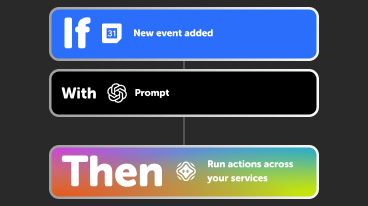
Power more advanced automations
Use credits to power your automations, including actions that require more processing. -

Access faster speeds and higher rate limits
Get faster updates and more actions with increased rate limits and more frequent checks.
AL-KO Smart Garden and Weather Underground tips, tools, and resources

More on AL-KO Smart Garden and Weather Underground
About AL-KO Smart Garden
AL-KO Smart Garden and IFTTT let you automate your Robolinho robotic lawnmower based on weather, battery, and connection status.
About Weather Underground
Weather Underground and IFTTT let you build automations based on hyperlocal weather conditions like temperature, humidity, wind speed, and pollen levels.