










Blink Philips Hue lights and notify if fridge door left open
Other popular Home Connect Fridge Freezer workflows and automations
-
 10
10
-
-
Blink Philips Hue lights when your freezer door is left open too long
-
-
Trigger Alexa Voice Monkey when your Home Connect fridge door stays open too long
-
-
Send SMS when your refrigerator door stays open too long
-
-
Set Home Connect freezer temperature for Ballotpedia breaking news
-
-
Send a web request when your fridge door is left open too long
-
-
Send a web request when your freezer is left open too long
-
-
Get an SMS alert when your Home Connect fridge door is left open
47
-
-
Raise Home Connect freezer temperature when electricity is expensive in Norway
-







Automate Home Connect Fridge Freezer and Langolink Lock (China) from your AI assistant
Ask Perplexity to create Home Connect Fridge Freezer applets and control your appliance settings, right from your AI assistant, with IFTTT MCP.
Set up IFTTT MCP


Create your own Home Connect Fridge Freezer and Langolink Lock (China) workflow
Create custom workflows effortlessly by selecting triggers, queries, and actions. With IFTTT, it's simple: “If this” trigger happens, “then that” action follows. Streamline tasks and save time with automated workflows that work for you.
24 triggers, queries, and actions
Freezer door open too long
Polling trigger
Polling Applets run after IFTTT reaches out to the trigger service and finds a new trigger event. These trigger checks occur every 5 minutes for Pro and Pro+ users, and every hour for Free users.
This trigger fires every time your freezer door was left open too long.
Freezer door opened
Polling trigger
Polling Applets run after IFTTT reaches out to the trigger service and finds a new trigger event. These trigger checks occur every 5 minutes for Pro and Pro+ users, and every hour for Free users.
This trigger fires every time your freezer door has been opened.
Freezer temperature too high
Polling trigger
Polling Applets run after IFTTT reaches out to the trigger service and finds a new trigger event. These trigger checks occur every 5 minutes for Pro and Pro+ users, and every hour for Free users.
This trigger fires every time your freezer temperature is too high.
Lock state changed
Polling trigger
Polling Applets run after IFTTT reaches out to the trigger service and finds a new trigger event. These trigger checks occur every 5 minutes for Pro and Pro+ users, and every hour for Free users.
This trigger fires when the lock state was changed. For example, when the door lock is opened, it triggers sending an email to you, or it triggers turning on the light in your hallway.
Refrigerator door open too long
Polling trigger
Polling Applets run after IFTTT reaches out to the trigger service and finds a new trigger event. These trigger checks occur every 5 minutes for Pro and Pro+ users, and every hour for Free users.
This trigger fires every time your refrigerator door was left open too long.
Refrigerator door opened
Polling trigger
Polling Applets run after IFTTT reaches out to the trigger service and finds a new trigger event. These trigger checks occur every 5 minutes for Pro and Pro+ users, and every hour for Free users.
This trigger fires every time your refrigerator door has been opened.
Device current properties

Query
A query lets your Applet retrieve extra data that isn't included in the trigger, so that your automation can include more complete or useful information.
This query returns the device current properties.
History of freezer door opens
Query
A query lets your Applet retrieve extra data that isn't included in the trigger, so that your automation can include more complete or useful information.
This query returns a list of when your freezer door has been opened.
History of freezer temperature too high
Query
A query lets your Applet retrieve extra data that isn't included in the trigger, so that your automation can include more complete or useful information.
This query returns a list of when your freezer temperature was too high.
History of refrigerator door open too long
Query
A query lets your Applet retrieve extra data that isn't included in the trigger, so that your automation can include more complete or useful information.
This query returns a list of when your refrigerator door was left open too long.
History of refrigerator door opens
Query
A query lets your Applet retrieve extra data that isn't included in the trigger, so that your automation can include more complete or useful information.
This query returns a list of when your refrigerator door was opened.
Activate Eco mode
Action
An action is the task your Applet carries out after the trigger occurs. It defines what happens as the result of your automation and completes the workflow.
This action will activate Eco mode on your appliance. Note that this will change set point temperature and manually changing it will disable the Eco mode.
Activate freezer Super Freezing mode
Action
An action is the task your Applet carries out after the trigger occurs. It defines what happens as the result of your automation and completes the workflow.
This action will temporarily cool the freezer at maximum power.
Activate Fresh mode
Action
An action is the task your Applet carries out after the trigger occurs. It defines what happens as the result of your automation and completes the workflow.
This action will activate Fresh mode on your appliance. Note that this will change set point temperature and manually changing it will disable the Fresh mode.
Activate refrigerator Super Cooling mode
Action
An action is the task your Applet carries out after the trigger occurs. It defines what happens as the result of your automation and completes the workflow.
This action will temporarily cool the refrigerator at maximum power.
Activate Sabbath mode
Action
An action is the task your Applet carries out after the trigger occurs. It defines what happens as the result of your automation and completes the workflow.
This action will activate Sabbath mode (Rest mode) on your appliance. Note that this will disable most other actions for your appliance, including remote temperature control.
Activate Vacation mode
Action
An action is the task your Applet carries out after the trigger occurs. It defines what happens as the result of your automation and completes the workflow.
This action will activate Vacation mode (Holiday mode) on your appliance. Note that this will change set point temperature and manually changing it will disable the Vacation mode (Holiday mode).
Deactivate Eco mode
Action
An action is the task your Applet carries out after the trigger occurs. It defines what happens as the result of your automation and completes the workflow.
This action will deactivate Eco mode on your appliance.
Deactivate Fresh mode
Action
An action is the task your Applet carries out after the trigger occurs. It defines what happens as the result of your automation and completes the workflow.
This action will deactivate Fresh mode on your appliance.
Deactivate Sabbath mode
Action
An action is the task your Applet carries out after the trigger occurs. It defines what happens as the result of your automation and completes the workflow.
This action will deactivate Sabbath mode on your appliance.
Deactivate Vacation Mode
Action
An action is the task your Applet carries out after the trigger occurs. It defines what happens as the result of your automation and completes the workflow.
This action will deactivate Vacation mode on your appliance.
Notify the App
Action
An action is the task your Applet carries out after the trigger occurs. It defines what happens as the result of your automation and completes the workflow.
This action will send a notification to the mobile app.
Set freezer temperature
Action
An action is the task your Applet carries out after the trigger occurs. It defines what happens as the result of your automation and completes the workflow.
This action will set the freezer temperature.
Activate Eco mode
Action
An action is the task your Applet carries out after the trigger occurs. It defines what happens as the result of your automation and completes the workflow.
This action will activate Eco mode on your appliance. Note that this will change set point temperature and manually changing it will disable the Eco mode.
Activate freezer Super Freezing mode
Action
An action is the task your Applet carries out after the trigger occurs. It defines what happens as the result of your automation and completes the workflow.
This action will temporarily cool the freezer at maximum power.
Activate Fresh mode
Action
An action is the task your Applet carries out after the trigger occurs. It defines what happens as the result of your automation and completes the workflow.
This action will activate Fresh mode on your appliance. Note that this will change set point temperature and manually changing it will disable the Fresh mode.
Activate refrigerator Super Cooling mode
Action
An action is the task your Applet carries out after the trigger occurs. It defines what happens as the result of your automation and completes the workflow.
This action will temporarily cool the refrigerator at maximum power.
Activate Sabbath mode
Action
An action is the task your Applet carries out after the trigger occurs. It defines what happens as the result of your automation and completes the workflow.
This action will activate Sabbath mode (Rest mode) on your appliance. Note that this will disable most other actions for your appliance, including remote temperature control.
Activate Vacation mode
Action
An action is the task your Applet carries out after the trigger occurs. It defines what happens as the result of your automation and completes the workflow.
This action will activate Vacation mode (Holiday mode) on your appliance. Note that this will change set point temperature and manually changing it will disable the Vacation mode (Holiday mode).
Deactivate Eco mode
Action
An action is the task your Applet carries out after the trigger occurs. It defines what happens as the result of your automation and completes the workflow.
This action will deactivate Eco mode on your appliance.
Deactivate Fresh mode
Action
An action is the task your Applet carries out after the trigger occurs. It defines what happens as the result of your automation and completes the workflow.
This action will deactivate Fresh mode on your appliance.
Deactivate Sabbath mode
Action
An action is the task your Applet carries out after the trigger occurs. It defines what happens as the result of your automation and completes the workflow.
This action will deactivate Sabbath mode on your appliance.
Deactivate Vacation Mode
Action
An action is the task your Applet carries out after the trigger occurs. It defines what happens as the result of your automation and completes the workflow.
This action will deactivate Vacation mode on your appliance.
Device current properties
Query
A query lets your Applet retrieve extra data that isn't included in the trigger, so that your automation can include more complete or useful information.
This query returns the device current properties.
Freezer door open too long
Polling trigger
Polling Applets run after IFTTT reaches out to the trigger service and finds a new trigger event. These trigger checks occur every 5 minutes for Pro and Pro+ users, and every hour for Free users.
This trigger fires every time your freezer door was left open too long.
Build an automation in seconds!
If

Select a trigger the automation will use
Freezer door open too long
Freezer door opened
Freezer temperature too high
 Lock state changed
Refrigerator door open too long
Refrigerator door opened
Lock state changed
Refrigerator door open too long
Refrigerator door opened
Then
Select an action the automation will perform
Activate Eco mode
Activate freezer Super Freezing mode
Activate Fresh mode
Activate refrigerator Super Cooling mode
Activate Sabbath mode
Activate Vacation mode
Deactivate Eco mode
Deactivate Fresh mode
Deactivate Sabbath mode
Deactivate Vacation Mode
Notify the App
Set freezer temperature
Set refrigerator temperature
You can add delays, queries, and more actions in the chat.
GET STARTED
How to connect to a Home Connect Fridge Freezer automation
Find an Applet using Home Connect Fridge Freezer and Langolink Lock (China)
Find an automation to connect to, or create your own!Connect IFTTT to your accounts
Securely connect the Applet services to your respective accounts.Finalize and customize your Applet
Review trigger and action settings, and click connect. Simple as that!Upgrade your automations with
-
Connect to more Applets
Connect up to 20 automations with Pro, and unlimited automations with Pro+ -
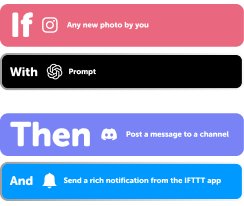
Add multiple actions with exclusive services
Add real-time data and multiple actions for smarter automations -
Get access to faster speeds
Get faster updates and more actions with higher rate limits and quicker checks
Home Connect Fridge Freezer and Langolink Lock (China) tips, tools, and resources
More on Home Connect Fridge Freezer and Langolink Lock (China)
About Home Connect Fridge Freezer
Home Connect is featured on a wide range of connected home appliances from Bosch, Siemens, Neff, Gaggenau and Thermador. With Home Connect you can connect your home appliances to other devices and services making your home appliance truly smart. Monitor and control your home appliances with Home Connect whether you are at home or out and about.
About Langolink Lock (China)
Langolink Lock (China), as the Chinese mainland version of the fully automatic smart lock built on Langolink Internet of Things technology, offers an extremely rich range of unlocking methods. It covers face recognition, fingerprint recognition, password input, NFC card sensing, and remote unlocking, greatly meeting the diverse and convenient door-opening needs of users. Moreover, this smart lock is equipped with a real-time video call function, providing a solid guarantee for users' home security and convenient communication.