









Add Google Calendar event when iHaus detects smoke alarm
Other popular iHaus smoke detector workflows and automations
-
-
-
Move SpotCam to preset point when iHaus detects heat alarm
-
-
Raise Somfy blinds when iHaus detects smoke
-
-
Stop VeeZy Oven when iHaus smoke alarm sounds
-
-
Pause Sonos when the iHaus smoke detector alarms
-
-
Blink Philips Hue lights when smoke is detected
-
-
Record Wyze video when iHaus detects smoke
-
-
Call Airbnb host when iHaus smoke alarm sounds
-
-
Email me when my iHaus smoke detector runs a test alarm
 2
2
-









Automate iHaus smoke detector and Konka Smart from your AI assistant
Have Claude, ChatGPT, or Cursor build and run iHaus smoke detector and Konka Smart automations for you, like “Add Google Calendar event when iHaus detects smoke alarm”, with IFTTT MCP.
Set up IFTTT MCP


Create your own iHaus smoke detector and Konka Smart workflow
Create custom workflows effortlessly by selecting triggers, queries, and actions. With IFTTT, it's simple: “If this” trigger happens, “then that” action follows. Streamline tasks and save time with automated workflows that work for you.
27 triggers, queries, and actions
Battery low
Polling trigger
Polling Applets run after IFTTT reaches out to the trigger service and finds a new trigger event. These trigger checks occur every 5 minutes for Pro and Pro+ users, and every hour for Free users.
This trigger fires when the battery in the lock is low.
Camera detects motion
Polling trigger
Polling Applets run after IFTTT reaches out to the trigger service and finds a new trigger event. These trigger checks occur every 5 minutes for Pro and Pro+ users, and every hour for Free users.
This trigger fires when the specified camera detects motion. To use this trigger, camera’s motion detection should be turned on.
Camera detects sound
Polling trigger
Polling Applets run after IFTTT reaches out to the trigger service and finds a new trigger event. These trigger checks occur every 5 minutes for Pro and Pro+ users, and every hour for Free users.
This trigger fires when the specified camera detects sound. To use this trigger, camera’s sound detection should be turned on.
Device or group is turned off
Polling trigger
Polling Applets run after IFTTT reaches out to the trigger service and finds a new trigger event. These trigger checks occur every 5 minutes for Pro and Pro+ users, and every hour for Free users.
This trigger fires when the specified device/group is turned off.
Device or group is turned on
Polling trigger
Polling Applets run after IFTTT reaches out to the trigger service and finds a new trigger event. These trigger checks occur every 5 minutes for Pro and Pro+ users, and every hour for Free users.
This trigger fires when the specified device/group is turned on.
Door sensor is closed
Polling trigger
Polling Applets run after IFTTT reaches out to the trigger service and finds a new trigger event. These trigger checks occur every 5 minutes for Pro and Pro+ users, and every hour for Free users.
This trigger fires when the door sensor is closed.
Door sensor is open
Polling trigger
Polling Applets run after IFTTT reaches out to the trigger service and finds a new trigger event. These trigger checks occur every 5 minutes for Pro and Pro+ users, and every hour for Free users.
This trigger fires when the door sensor is open.
Heat alarm
Polling trigger
Polling Applets run after IFTTT reaches out to the trigger service and finds a new trigger event. These trigger checks occur every 5 minutes for Pro and Pro+ users, and every hour for Free users.
The trigger fires when your smoke detector detects a heat alarm.
Input incorrect password repeatedly
Polling trigger
Polling Applets run after IFTTT reaches out to the trigger service and finds a new trigger event. These trigger checks occur every 5 minutes for Pro and Pro+ users, and every hour for Free users.
This trigger fires when someone inputs an incorrect password repeatedly.
Leak detected
Polling trigger
Polling Applets run after IFTTT reaches out to the trigger service and finds a new trigger event. These trigger checks occur every 5 minutes for Pro and Pro+ users, and every hour for Free users.
This trigger fires when water leak is detected.
Shake detected
Polling trigger
Polling Applets run after IFTTT reaches out to the trigger service and finds a new trigger event. These trigger checks occur every 5 minutes for Pro and Pro+ users, and every hour for Free users.
This trigger fires when sensor shake detected
Smoke alarm
Polling trigger
Polling Applets run after IFTTT reaches out to the trigger service and finds a new trigger event. These trigger checks occur every 5 minutes for Pro and Pro+ users, and every hour for Free users.
The trigger fires when your smoke detector detects a smoke alarm.
History of Device was turned on

Query
A query lets your Applet retrieve extra data that isn't included in the trigger, so that your automation can include more complete or useful information.
This query returns a list of when the specified device/group was turned on.
History of when smoke detector alarmed
Query
A query lets your Applet retrieve extra data that isn't included in the trigger, so that your automation can include more complete or useful information.
The query returns a list of when your smoke detector detected a smoke alarm.
Activate Scene
Action
An action is the task your Applet carries out after the trigger occurs. It defines what happens as the result of your automation and completes the workflow.
This action will activate the specified scene.
Set AC temperature
Action
An action is the task your Applet carries out after the trigger occurs. It defines what happens as the result of your automation and completes the workflow.
This action will set your AC to a specified temperature by remote controller.
Set light brightness
Action
An action is the task your Applet carries out after the trigger occurs. It defines what happens as the result of your automation and completes the workflow.
This action will set your light to a specified brightness.
Set light color
Action
An action is the task your Applet carries out after the trigger occurs. It defines what happens as the result of your automation and completes the workflow.
This action will set the light to specified color.
Start Cool Mode
Action
An action is the task your Applet carries out after the trigger occurs. It defines what happens as the result of your automation and completes the workflow.
This action will set your AC to Cool Mode.
Start Heat Mode
Action
An action is the task your Applet carries out after the trigger occurs. It defines what happens as the result of your automation and completes the workflow.
This action will set your AC to Heat Mode.
Turn off
Action
An action is the task your Applet carries out after the trigger occurs. It defines what happens as the result of your automation and completes the workflow.
This action will turn off the device/group of your choosing.
Turn off oscillation function of fan
Action
An action is the task your Applet carries out after the trigger occurs. It defines what happens as the result of your automation and completes the workflow.
This action will turn off the oscillation function of your fan by IR remote controller.
Turn on
Action
An action is the task your Applet carries out after the trigger occurs. It defines what happens as the result of your automation and completes the workflow.
This action will turn on the device/group of your choosing.
Turn on oscillation function of fan
Action
An action is the task your Applet carries out after the trigger occurs. It defines what happens as the result of your automation and completes the workflow.
This action will turn on the oscillation function of your fan by IR remote controller.
Activate Scene
Action
An action is the task your Applet carries out after the trigger occurs. It defines what happens as the result of your automation and completes the workflow.
This action will activate the specified scene.
Battery low
Polling trigger
Polling Applets run after IFTTT reaches out to the trigger service and finds a new trigger event. These trigger checks occur every 5 minutes for Pro and Pro+ users, and every hour for Free users.
This trigger fires when the battery in the lock is low.
Camera detects motion
Polling trigger
Polling Applets run after IFTTT reaches out to the trigger service and finds a new trigger event. These trigger checks occur every 5 minutes for Pro and Pro+ users, and every hour for Free users.
This trigger fires when the specified camera detects motion. To use this trigger, camera’s motion detection should be turned on.
Camera detects sound
Polling trigger
Polling Applets run after IFTTT reaches out to the trigger service and finds a new trigger event. These trigger checks occur every 5 minutes for Pro and Pro+ users, and every hour for Free users.
This trigger fires when the specified camera detects sound. To use this trigger, camera’s sound detection should be turned on.
Device or group is turned off
Polling trigger
Polling Applets run after IFTTT reaches out to the trigger service and finds a new trigger event. These trigger checks occur every 5 minutes for Pro and Pro+ users, and every hour for Free users.
This trigger fires when the specified device/group is turned off.
Device or group is turned on
Polling trigger
Polling Applets run after IFTTT reaches out to the trigger service and finds a new trigger event. These trigger checks occur every 5 minutes for Pro and Pro+ users, and every hour for Free users.
This trigger fires when the specified device/group is turned on.
Door sensor is closed
Polling trigger
Polling Applets run after IFTTT reaches out to the trigger service and finds a new trigger event. These trigger checks occur every 5 minutes for Pro and Pro+ users, and every hour for Free users.
This trigger fires when the door sensor is closed.
Door sensor is open
Polling trigger
Polling Applets run after IFTTT reaches out to the trigger service and finds a new trigger event. These trigger checks occur every 5 minutes for Pro and Pro+ users, and every hour for Free users.
This trigger fires when the door sensor is open.
Heat alarm
Polling trigger
Polling Applets run after IFTTT reaches out to the trigger service and finds a new trigger event. These trigger checks occur every 5 minutes for Pro and Pro+ users, and every hour for Free users.
The trigger fires when your smoke detector detects a heat alarm.
History of Device was turned on
Query
A query lets your Applet retrieve extra data that isn't included in the trigger, so that your automation can include more complete or useful information.
This query returns a list of when the specified device/group was turned on.
History of when smoke detector alarmed
Query
A query lets your Applet retrieve extra data that isn't included in the trigger, so that your automation can include more complete or useful information.
The query returns a list of when your smoke detector detected a smoke alarm.
Input incorrect password repeatedly
Polling trigger
Polling Applets run after IFTTT reaches out to the trigger service and finds a new trigger event. These trigger checks occur every 5 minutes for Pro and Pro+ users, and every hour for Free users.
This trigger fires when someone inputs an incorrect password repeatedly.
Build an automation in seconds!
If
Select a trigger the automation will use
Battery low
Camera detects motion
Camera detects sound
Device or group is turned off
Device or group is turned on
Door sensor is closed
Door sensor is open
 Heat alarm
Input incorrect password repeatedly
Leak detected
Shake detected
Smoke alarm
Sound and light detected
Test alarm
Unlock the lock
Heat alarm
Input incorrect password repeatedly
Leak detected
Shake detected
Smoke alarm
Sound and light detected
Test alarm
Unlock the lock
Then
Select an action the automation will perform
Activate Scene
Set AC temperature
Set light brightness
Set light color
Start Cool Mode
Start Heat Mode
Turn off
Turn off oscillation function of fan
Turn on
Turn on oscillation function of fan
You can add delays, queries, and more actions in the chat.
GET STARTED
How to connect to a iHaus smoke detector automation
Find an Applet using iHaus smoke detector and Konka Smart
Find an automation to connect to, or create your own!Connect IFTTT to your accounts
Securely connect the Applet services to your respective accounts.Finalize and customize your Applet
Review trigger and action settings, and click connect. Simple as that!Upgrade your automations with
-
Connect to more Applets
Connect up to 20 automations with Pro, and unlimited automations with Pro+ -
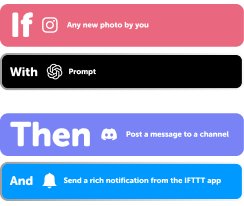
Add multiple actions with exclusive services
Add real-time data and multiple actions for smarter automations -
Get access to faster speeds
Get faster updates and more actions with higher rate limits and quicker checks
iHaus smoke detector and Konka Smart tips, tools, and resources
More on iHaus smoke detector and Konka Smart
About iHaus smoke detector
Connect your iHaus smoke detector to your calendar, blinds or get a call via VoIP. Get alerts on your smartphone if a smoke alarm is detected. This way you get your fire protection under control - always and everywhere.
The iHaus smoke detectors are part of the iHaus Smart Home & Living platform on which you can connect different IoT services and devices, no matter the brand.
About Konka Smart
Konka Smart provides extraordinary experience with your smart home appliances, including smart plugs, smart lights, air conditioners, humidifiers... As long as your device works with Smart Life, you'll be able to build automation tasks through IFTTT like turning on the living room light when you're back home.