









Get a WhatsApp message when rain is expected tomorrow
Other popular InOut WhatsApp Receive/Send Message workflows and automations
-
 132
132
-
-
Send a WhatsApp message when you hit your Fitbit step goal
1
-
-
Save WhatsApp media to Google Drive automatically
41
-
-
Send a WhatsApp message when you miss a call on Android
184
-
-
Send WhatsApp reminder for new iOS Calendar events
13
-
-
Add Todoist task from WhatsApp message
66
-
-
Save WhatsApp Messages in Google Sheets for Easy Tracking
180
-
-
Vibrate your Pavlok when a specific WhatsApp message arrives
11
-
-
Announce new WhatsApp messages on Alexa
26
-









Automate InOut WhatsApp Receive/Send Message and Microsoft OneDrive from your AI assistant
Ask Claude to create WhatsApp applets that trigger actions when you message InOut, with IFTTT MCP.
Set up IFTTT MCP


Create your own InOut WhatsApp Receive/Send Message and Microsoft OneDrive workflow
Create custom workflows effortlessly by selecting triggers, queries, and actions. With IFTTT, it's simple: “If this” trigger happens, “then that” action follows. Streamline tasks and save time with automated workflows that work for you.
7 triggers, queries, and actions
New file in folder
Polling trigger
Polling Applets run after IFTTT reaches out to the trigger service and finds a new trigger event. These trigger checks occur every 5 minutes for Pro and Pro+ users, and every hour for Free users.
This Trigger fires every time a new file is added to the folder you specify in your OneDrive.
You send a specific WhatsApp message to InOut
Polling trigger
Polling Applets run after IFTTT reaches out to the trigger service and finds a new trigger event. These trigger checks occur every 5 minutes for Pro and Pro+ users, and every hour for Free users.
This trigger fires when you send a specific message to the InOut Bot on WhatsApp. All other messages are ignored.
You send any WhatsApp message to InOut
Polling trigger
Polling Applets run after IFTTT reaches out to the trigger service and finds a new trigger event. These trigger checks occur every 5 minutes for Pro and Pro+ users, and every hour for Free users.
This trigger fires when you send any message to the InOut Bot on WhatsApp.
Create a folder
Action
An action is the task your Applet carries out after the trigger occurs. It defines what happens as the result of your automation and completes the workflow.
This Action will create a new folder in your OneDrive.
Create a sharing link
Action
An action is the task your Applet carries out after the trigger occurs. It defines what happens as the result of your automation and completes the workflow.
This Action will create a shareable link for a file in your OneDrive.
Send me a message
Action
An action is the task your Applet carries out after the trigger occurs. It defines what happens as the result of your automation and completes the workflow.
This action will send a WhatsApp message from the InOut Bot to your number.
Upload file from URL
Action
An action is the task your Applet carries out after the trigger occurs. It defines what happens as the result of your automation and completes the workflow.
This Action will download a file from a URL and upload it to your OneDrive.
Create a folder
Action
An action is the task your Applet carries out after the trigger occurs. It defines what happens as the result of your automation and completes the workflow.
This Action will create a new folder in your OneDrive.
Create a sharing link
Action
An action is the task your Applet carries out after the trigger occurs. It defines what happens as the result of your automation and completes the workflow.
This Action will create a shareable link for a file in your OneDrive.
New file in folder
Polling trigger
Polling Applets run after IFTTT reaches out to the trigger service and finds a new trigger event. These trigger checks occur every 5 minutes for Pro and Pro+ users, and every hour for Free users.
This Trigger fires every time a new file is added to the folder you specify in your OneDrive.
Send me a message
Action
An action is the task your Applet carries out after the trigger occurs. It defines what happens as the result of your automation and completes the workflow.
This action will send a WhatsApp message from the InOut Bot to your number.
Upload file from URL
Action
An action is the task your Applet carries out after the trigger occurs. It defines what happens as the result of your automation and completes the workflow.
This Action will download a file from a URL and upload it to your OneDrive.
You send a specific WhatsApp message to InOut
Polling trigger
Polling Applets run after IFTTT reaches out to the trigger service and finds a new trigger event. These trigger checks occur every 5 minutes for Pro and Pro+ users, and every hour for Free users.
This trigger fires when you send a specific message to the InOut Bot on WhatsApp. All other messages are ignored.
You send any WhatsApp message to InOut
Polling trigger
Polling Applets run after IFTTT reaches out to the trigger service and finds a new trigger event. These trigger checks occur every 5 minutes for Pro and Pro+ users, and every hour for Free users.
This trigger fires when you send any message to the InOut Bot on WhatsApp.
Build an automation in seconds!
If

Select a trigger the automation will use
New file in folder
 You send a specific WhatsApp message to InOut
You send any WhatsApp message to InOut
You send a specific WhatsApp message to InOut
You send any WhatsApp message to InOut
Then
Select an action the automation will perform
Create a folder
Create a sharing link
Send me a message
Upload file from URL
You can add delays, queries, and more actions in the chat.
GET STARTED
How to connect to a InOut WhatsApp Receive/Send Message automation
Find an Applet using InOut WhatsApp Receive/Send Message and Microsoft OneDrive
Find an automation to connect to, or create your own!Connect IFTTT to your accounts
Securely connect the Applet services to your respective accounts.Finalize and customize your Applet
Review trigger and action settings, and click connect. Simple as that!Upgrade your automations with
-

Connect to more Applets
Connect up to 20 automations with Pro, and unlimited automations with Pro+ -
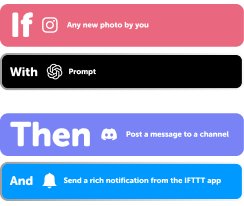
Add multiple actions with exclusive services
Add real-time data and multiple actions for smarter automations -
Get access to faster speeds
Get faster updates and more actions with higher rate limits and quicker checks
InOut WhatsApp Receive/Send Message and Microsoft OneDrive tips, tools, and resources

More on InOut WhatsApp Receive/Send Message and Microsoft OneDrive
About InOut WhatsApp Receive/Send Message
Receive and Send WhatsApp Messages in IFTTT Applets to trigger different actions on your automations or send notifications. You can connect WhatsApp with IFTTT using this service. Learn more here.
About Microsoft OneDrive
Microsoft OneDrive is a cloud storage service that lets you store, sync, and share files across your devices. Turn on Applets to automatically manage your files and folders.