










Blink MeshTek lights every hour
Other popular MeshTek workflows and automations
-
-
-
Turn on MeshTek lights with Button widget
 3
3
-
-
Turn off MeshTek lights with a Button press
-
-
Turn on MeshTek lights at a scheduled time
-
-
Blink MeshTek lights with a Button press
1
-
-
Apply Cool White to MeshTek lights at a set time
-


Automate MeshTek and Pushbullet from your AI assistant
Ask Claude to create Meshtek applets with IFTTT MCP and control your lights through voice commands.
Set up IFTTT MCP


Create your own MeshTek and Pushbullet workflow
Create custom workflows effortlessly by selecting triggers, queries, and actions. With IFTTT, it's simple: “If this” trigger happens, “then that” action follows. Streamline tasks and save time with automated workflows that work for you.
13 triggers, queries, and actions
Apply Normal Effects
Action
An action is the task your Applet carries out after the trigger occurs. It defines what happens as the result of your automation and completes the workflow.
This action will apply a selected normal effect to selected Meshtek device.
Apply Special Effects
Action
An action is the task your Applet carries out after the trigger occurs. It defines what happens as the result of your automation and completes the workflow.
This action will apply a selected special effect to selected Meshtek device.
Apply Static Preset
Action
An action is the task your Applet carries out after the trigger occurs. It defines what happens as the result of your automation and completes the workflow.
This action will apply a Static effect to selected Meshtek device.
Apply Strip Effects
Action
An action is the task your Applet carries out after the trigger occurs. It defines what happens as the result of your automation and completes the workflow.
This action will apply a selected strip effects to selected Meshtek device.
Apply White
Action
An action is the task your Applet carries out after the trigger occurs. It defines what happens as the result of your automation and completes the workflow.
This action will apply white to selected Meshtek device.
Blink Lights
Action
An action is the task your Applet carries out after the trigger occurs. It defines what happens as the result of your automation and completes the workflow.
This action will blink selected Meshtek device on and off to a specified Color and times.
Lights Off
Action
An action is the task your Applet carries out after the trigger occurs. It defines what happens as the result of your automation and completes the workflow.
This action will turn off your selected Meshtek device.
Lights On
Action
An action is the task your Applet carries out after the trigger occurs. It defines what happens as the result of your automation and completes the workflow.
This action will turn on selected Meshtek device to the chosen default lighting setting.
Push a file
Action
An action is the task your Applet carries out after the trigger occurs. It defines what happens as the result of your automation and completes the workflow.
This Action will push a new file to your Pushbullet inbox.
Push a link
Action
An action is the task your Applet carries out after the trigger occurs. It defines what happens as the result of your automation and completes the workflow.
This Action will push a new link to your Pushbullet inbox.
Push a note
Action
An action is the task your Applet carries out after the trigger occurs. It defines what happens as the result of your automation and completes the workflow.
This Action will push a new note to your Pushbullet inbox.
Push an address
Action
An action is the task your Applet carries out after the trigger occurs. It defines what happens as the result of your automation and completes the workflow.
This Action will push a new address to your Pushbullet inbox that will open in Google Maps.
Apply Normal Effects
Action
An action is the task your Applet carries out after the trigger occurs. It defines what happens as the result of your automation and completes the workflow.
This action will apply a selected normal effect to selected Meshtek device.
Apply Special Effects
Action
An action is the task your Applet carries out after the trigger occurs. It defines what happens as the result of your automation and completes the workflow.
This action will apply a selected special effect to selected Meshtek device.
Apply Static Preset
Action
An action is the task your Applet carries out after the trigger occurs. It defines what happens as the result of your automation and completes the workflow.
This action will apply a Static effect to selected Meshtek device.
Apply Strip Effects
Action
An action is the task your Applet carries out after the trigger occurs. It defines what happens as the result of your automation and completes the workflow.
This action will apply a selected strip effects to selected Meshtek device.
Apply White
Action
An action is the task your Applet carries out after the trigger occurs. It defines what happens as the result of your automation and completes the workflow.
This action will apply white to selected Meshtek device.
Blink Lights
Action
An action is the task your Applet carries out after the trigger occurs. It defines what happens as the result of your automation and completes the workflow.
This action will blink selected Meshtek device on and off to a specified Color and times.
Lights Off
Action
An action is the task your Applet carries out after the trigger occurs. It defines what happens as the result of your automation and completes the workflow.
This action will turn off your selected Meshtek device.
Lights On
Action
An action is the task your Applet carries out after the trigger occurs. It defines what happens as the result of your automation and completes the workflow.
This action will turn on selected Meshtek device to the chosen default lighting setting.
Push a file
Action
An action is the task your Applet carries out after the trigger occurs. It defines what happens as the result of your automation and completes the workflow.
This Action will push a new file to your Pushbullet inbox.
Push a link
Action
An action is the task your Applet carries out after the trigger occurs. It defines what happens as the result of your automation and completes the workflow.
This Action will push a new link to your Pushbullet inbox.
Push a note
Action
An action is the task your Applet carries out after the trigger occurs. It defines what happens as the result of your automation and completes the workflow.
This Action will push a new note to your Pushbullet inbox.
Push an address
Action
An action is the task your Applet carries out after the trigger occurs. It defines what happens as the result of your automation and completes the workflow.
This Action will push a new address to your Pushbullet inbox that will open in Google Maps.
GET STARTED
How to connect to a MeshTek automation
Find an Applet using MeshTek and Pushbullet
Find an automation to connect to, or create your own!Connect IFTTT to your accounts
Securely connect the Applet services to your respective accounts.Finalize and customize your Applet
Review trigger and action settings, and click connect. Simple as that!Upgrade your automations with
-
Connect to more Applets
Connect up to 20 automations with Pro, and unlimited automations with Pro+ -
Add multiple actions with exclusive services
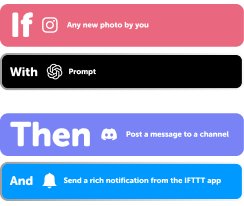
Add real-time data and multiple actions for smarter automations -
Get access to faster speeds
Get faster updates and more actions with higher rate limits and quicker checks
More on MeshTek and Pushbullet
About MeshTek
The smartest lights on the planet are even smarter when used with IFTTT. Control your Meshtek device with your voice, trigger notifications, and automate your lighting to suit your fancy. Explore the possibilities and give life to light with Meshtek devices. Note: the Meshtek mobile app must be active and within range of your Meshtek device in order to execute IFTTT actions.
About Pushbullet
Pushbullet makes it easy to push notes, links, files, addresses, and more to your Android and iOS devices from the web.