









Pause Sonos when Telldus Live! device turns off
7 ready-made Sonos and Telldus Live! Applets
Turn one on, or build your own. Telldus Live! can start an automation with "A device switched off", and IFTTT can then run "Mute" on Sonos.-
-
-
Play a Sonos Favorite when a Telldus device switches on
-
-
Turn on Telldus Live! device and pause Sonos when you exit an area
-
-
Play Sonos music when your Telldus Live! device is switched on
-
-
Resume Sonos playback when a Telldus Live! device turns on
-
-
Resume Sonos playback when a Telldus Live! device switches off
-
-
Mute your Sonos speaker when a Telldus Live! device switches on
-


Automate Sonos and Telldus Live! from your AI assistant
Ask OpenClaw to create Sonos applets for controlling playback and volume, right from your AI assistant, with IFTTT MCP.
Set up IFTTT MCP


Create your own Sonos and Telldus Live! workflow
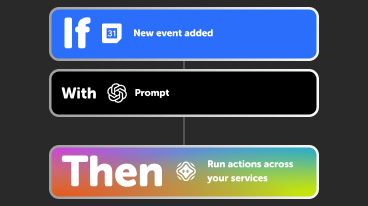
Create custom workflows effortlessly by selecting triggers, queries, and actions. With IFTTT, it's simple: “If this” trigger happens, “then that” action follows. Streamline tasks and save time with automated workflows that work for you.
33 triggers, queries, and actions
A device switched off
Polling trigger
Polling Applets run after IFTTT reaches out to the trigger service and finds a new trigger event. These trigger checks occur every hour on Free, every 15 minutes on Starter, and every 5 minutes on Pro and Pro+.
This trigger fires every time your device is switched off.
A device switched on
Polling trigger
Polling Applets run after IFTTT reaches out to the trigger service and finds a new trigger event. These trigger checks occur every hour on Free, every 15 minutes on Starter, and every 5 minutes on Pro and Pro+.
This trigger fires every time your device is switched on.
Humidity drops below
Polling trigger
Polling Applets run after IFTTT reaches out to the trigger service and finds a new trigger event. These trigger checks occur every hour on Free, every 15 minutes on Starter, and every 5 minutes on Pro and Pro+.
This trigger fires every time the humidity drops below the chosen value.
Humidity rises above
Polling trigger
Polling Applets run after IFTTT reaches out to the trigger service and finds a new trigger event. These trigger checks occur every hour on Free, every 15 minutes on Starter, and every 5 minutes on Pro and Pro+.
This trigger fires every time the humidity rises above the chosen value.
Luminance drops below
Polling trigger
Polling Applets run after IFTTT reaches out to the trigger service and finds a new trigger event. These trigger checks occur every hour on Free, every 15 minutes on Starter, and every 5 minutes on Pro and Pro+.
This trigger fires every time the luminance drops below the chosen value.
Luminance rises above
Polling trigger
Polling Applets run after IFTTT reaches out to the trigger service and finds a new trigger event. These trigger checks occur every hour on Free, every 15 minutes on Starter, and every 5 minutes on Pro and Pro+.
This trigger fires every time the luminance rises above the chosen value.
Power drops below
Polling trigger
Polling Applets run after IFTTT reaches out to the trigger service and finds a new trigger event. These trigger checks occur every hour on Free, every 15 minutes on Starter, and every 5 minutes on Pro and Pro+.
This trigger fires every time the power level drops below the chosen value.
Power rises above
Polling trigger
Polling Applets run after IFTTT reaches out to the trigger service and finds a new trigger event. These trigger checks occur every hour on Free, every 15 minutes on Starter, and every 5 minutes on Pro and Pro+.
This trigger fires every time the power rises above the chosen value.
Temperature drops below
Polling trigger
Polling Applets run after IFTTT reaches out to the trigger service and finds a new trigger event. These trigger checks occur every hour on Free, every 15 minutes on Starter, and every 5 minutes on Pro and Pro+.
This trigger fires every time the temperature drops below the chosen value.
Temperature rises above
Polling trigger
Polling Applets run after IFTTT reaches out to the trigger service and finds a new trigger event. These trigger checks occur every hour on Free, every 15 minutes on Starter, and every 5 minutes on Pro and Pro+.
This trigger fires every time the temperature rises above the chosen value.
Current playback in a room

Query
A query lets your Applet retrieve extra data that isn't included in the trigger, so that your automation can include more complete or useful information.
This query returns whether a Sonos room is playing right now, and what it's playing.
History of device getting switched off
Query
A query lets your Applet retrieve extra data that isn't included in the trigger, so that your automation can include more complete or useful information.
This query returns a list of when your device was switched off.
History of device switched on events
Query
A query lets your Applet retrieve extra data that isn't included in the trigger, so that your automation can include more complete or useful information.
This query returns a list of events when your device was switched on.
History of Luminance dropping below a threshold
Query
A query lets your Applet retrieve extra data that isn't included in the trigger, so that your automation can include more complete or useful information.
This query returns a list of when the luminance drops below the chosen value. Note: this query will only return future events after this Applet is created.
History of temperature drops below
Query
A query lets your Applet retrieve extra data that isn't included in the trigger, so that your automation can include more complete or useful information.
This query returns a list of times the temperature drops below the chosen value. Note: this query will only return future events after this Applet is created.
History of temperature rising above chosen value
Query
A query lets your Applet retrieve extra data that isn't included in the trigger, so that your automation can include more complete or useful information.
This query returns a list of when the temperature rose above the chosen value. Note: this query will only return future events after this Applet is created.
Dim a device
Action
An action is the task your Applet carries out after the trigger occurs. It defines what happens as the result of your automation and completes the workflow.
Dim a device that support dimming.
Mute
Action
An action is the task your Applet carries out after the trigger occurs. It defines what happens as the result of your automation and completes the workflow.
Mutes a Sonos Player or Group
Pause
Action
An action is the task your Applet carries out after the trigger occurs. It defines what happens as the result of your automation and completes the workflow.
This action will pause playback.
Play Favorite
Action
An action is the task your Applet carries out after the trigger occurs. It defines what happens as the result of your automation and completes the workflow.
This action will play a Sonos Favorite.
Play Stream
Action
An action is the task your Applet carries out after the trigger occurs. It defines what happens as the result of your automation and completes the workflow.
This action will stream audio, such as a radio station, from a URL.
Resume
Action
An action is the task your Applet carries out after the trigger occurs. It defines what happens as the result of your automation and completes the workflow.
This action will resume playback.
Send bell to a device
Action
An action is the task your Applet carries out after the trigger occurs. It defines what happens as the result of your automation and completes the workflow.
Send bell to a device that supports a bell. E.g. a door bell.
Send down to a device
Action
An action is the task your Applet carries out after the trigger occurs. It defines what happens as the result of your automation and completes the workflow.
Send down to a device that support up. It may be e.g. Blinds or a Projector screen
Send up to a device
Action
An action is the task your Applet carries out after the trigger occurs. It defines what happens as the result of your automation and completes the workflow.
Send up to a device that support up. It may be e.g. Blinds or a Projector screen
Set Volume
Action
An action is the task your Applet carries out after the trigger occurs. It defines what happens as the result of your automation and completes the workflow.
Set Volume of Sonos Player or Group
Skip to Next Track
Action
An action is the task your Applet carries out after the trigger occurs. It defines what happens as the result of your automation and completes the workflow.
This action will skip to the next track, if Sonos is playing a queue.
Skip to Previous Track
Action
An action is the task your Applet carries out after the trigger occurs. It defines what happens as the result of your automation and completes the workflow.
This action will skip to the previous track, if Sonos is playing a queue.
A device switched off
Polling trigger
Polling Applets run after IFTTT reaches out to the trigger service and finds a new trigger event. These trigger checks occur every hour on Free, every 15 minutes on Starter, and every 5 minutes on Pro and Pro+.
This trigger fires every time your device is switched off.
A device switched on
Polling trigger
Polling Applets run after IFTTT reaches out to the trigger service and finds a new trigger event. These trigger checks occur every hour on Free, every 15 minutes on Starter, and every 5 minutes on Pro and Pro+.
This trigger fires every time your device is switched on.
Current playback in a room
Query
A query lets your Applet retrieve extra data that isn't included in the trigger, so that your automation can include more complete or useful information.
This query returns whether a Sonos room is playing right now, and what it's playing.
Dim a device
Action
An action is the task your Applet carries out after the trigger occurs. It defines what happens as the result of your automation and completes the workflow.
Dim a device that support dimming.
History of device getting switched off
Query
A query lets your Applet retrieve extra data that isn't included in the trigger, so that your automation can include more complete or useful information.
This query returns a list of when your device was switched off.
History of device switched on events
Query
A query lets your Applet retrieve extra data that isn't included in the trigger, so that your automation can include more complete or useful information.
This query returns a list of events when your device was switched on.
History of Luminance dropping below a threshold
Query
A query lets your Applet retrieve extra data that isn't included in the trigger, so that your automation can include more complete or useful information.
This query returns a list of when the luminance drops below the chosen value. Note: this query will only return future events after this Applet is created.
History of temperature drops below
Query
A query lets your Applet retrieve extra data that isn't included in the trigger, so that your automation can include more complete or useful information.
This query returns a list of times the temperature drops below the chosen value. Note: this query will only return future events after this Applet is created.
History of temperature rising above chosen value
Query
A query lets your Applet retrieve extra data that isn't included in the trigger, so that your automation can include more complete or useful information.
This query returns a list of when the temperature rose above the chosen value. Note: this query will only return future events after this Applet is created.
Humidity drops below
Polling trigger
Polling Applets run after IFTTT reaches out to the trigger service and finds a new trigger event. These trigger checks occur every hour on Free, every 15 minutes on Starter, and every 5 minutes on Pro and Pro+.
This trigger fires every time the humidity drops below the chosen value.
Humidity rises above
Polling trigger
Polling Applets run after IFTTT reaches out to the trigger service and finds a new trigger event. These trigger checks occur every hour on Free, every 15 minutes on Starter, and every 5 minutes on Pro and Pro+.
This trigger fires every time the humidity rises above the chosen value.
Luminance drops below
Polling trigger
Polling Applets run after IFTTT reaches out to the trigger service and finds a new trigger event. These trigger checks occur every hour on Free, every 15 minutes on Starter, and every 5 minutes on Pro and Pro+.
This trigger fires every time the luminance drops below the chosen value.
Build an automation in seconds!
If
Select a trigger the automation will use
A device switched off
A device switched on
Humidity drops below
Humidity rises above
Luminance drops below
Luminance rises above
Power drops below
Power rises above
Temperature drops below
Temperature rises above
Then
Select an action the automation will perform
Dim a device
 Mute
Pause
Play Favorite
Play Stream
Resume
Send bell to a device
Send down to a device
Send up to a device
Set Volume
Skip to Next Track
Skip to Previous Track
Turn off a device
Turn on a device
Unmute
Volume Down
Volume Up
Mute
Pause
Play Favorite
Play Stream
Resume
Send bell to a device
Send down to a device
Send up to a device
Set Volume
Skip to Next Track
Skip to Previous Track
Turn off a device
Turn on a device
Unmute
Volume Down
Volume Up
You can add delays, queries, and more actions in the chat.
GET STARTED
How to connect to a Sonos automation
Find an Applet using Sonos and Telldus Live!
Find an automation to connect to, or create your own!Connect IFTTT to your accounts
Securely connect the Applet services to your respective accounts.Finalize and customize your Applet
Review trigger and action settings, and click connect. Simple as that!Make more happen with your credits
-

More credits, more possibilities
Get more credits per month to power more automation activity. -
Power more advanced automations
Use credits to power your automations, including actions that require more processing. -

Access faster speeds and higher rate limits
Get faster updates and more actions with increased rate limits and more frequent checks.
Sonos and Telldus Live! tips, tools, and resources
More on Sonos and Telldus Live!
About Sonos
Sonos and IFTTT let you control what's playing in your rooms, adjust volume, and trigger your favorite music or streams from other apps.
About Telldus Live!
Telldus Live! and IFTTT let you automate your smart home by reacting to temperature, light, and power changes, then control your devices.