









Run Core Smart Home scene when Aqara door sensor opens
Other popular Core Smart Home workflows and automations
-
-
-
Start your iRobot when your security system is armed
-
-
Run Core Smart Home scene when you enter an area
-
-
Start Home Connect coffee program when Core Smart Home scene runs
-
-
Run a Core Smart Home scene with Google Assistant
-
-
Activate Philips Hue scene when Core Smart Home scene runs
-
-
Run Core Smart Home scene when you leave an area
-
-
Start Home Connect washer when leaving home via Core Smart Home
-
-
Run smart home scene when current weather changes to Rain
-








Automate Core Smart Home and Moonside Light from your AI assistant
Ask Copilot to run Core Smart Home scenes for you, right from your AI assistant, with IFTTT MCP.
Set up IFTTT MCP


Create your own Core Smart Home and Moonside Light workflow
Create custom workflows effortlessly by selecting triggers, queries, and actions. With IFTTT, it's simple: “If this” trigger happens, “then that” action follows. Streamline tasks and save time with automated workflows that work for you.
14 triggers, queries, and actions
Scene run
Polling trigger
Polling Applets run after IFTTT reaches out to the trigger service and finds a new trigger event. These trigger checks occur every 5 minutes for Pro and Pro+ users, and every hour for Free users.
This trigger fires when a new scene run.
History of scene run

Query
A query lets your Applet retrieve extra data that isn't included in the trigger, so that your automation can include more complete or useful information.
This query returns a list of when a new scene run.
Is Light On
Query
A query lets your Applet retrieve extra data that isn't included in the trigger, so that your automation can include more complete or useful information.
This query returns the on/off status of your lights.
Brighten lights to 100 percent brightness
Action
An action is the task your Applet carries out after the trigger occurs. It defines what happens as the result of your automation and completes the workflow.
Set lights to 100 percent brightness
Dim lights to 5 percent brightness
Action
An action is the task your Applet carries out after the trigger occurs. It defines what happens as the result of your automation and completes the workflow.
Dim lights to 5 percent brightness
Run scene
Action
An action is the task your Applet carries out after the trigger occurs. It defines what happens as the result of your automation and completes the workflow.
This action will run a scene immediately
Set lights to bedtime color
Action
An action is the task your Applet carries out after the trigger occurs. It defines what happens as the result of your automation and completes the workflow.
Set lights to bedtime color
Set lights to blending rainbow scene
Action
An action is the task your Applet carries out after the trigger occurs. It defines what happens as the result of your automation and completes the workflow.
This action will set all of the moonside lights to blending rainbow lighting effects.
Set lights to music reactive party scene
Action
An action is the task your Applet carries out after the trigger occurs. It defines what happens as the result of your automation and completes the workflow.
Set lights to music reactive party scene
Set lights to raining scene
Action
An action is the task your Applet carries out after the trigger occurs. It defines what happens as the result of your automation and completes the workflow.
This action will set all of the moonside lights to raining lighting effects.
Set lights to saved pixel mode
Action
An action is the task your Applet carries out after the trigger occurs. It defines what happens as the result of your automation and completes the workflow.
Set lights to saved pixel mode
Set lights to Youtube red
Action
An action is the task your Applet carries out after the trigger occurs. It defines what happens as the result of your automation and completes the workflow.
Set lights to Youtube red
Turn off all my lights
Action
An action is the task your Applet carries out after the trigger occurs. It defines what happens as the result of your automation and completes the workflow.
This action will turn off all of my Moonside lights.
Turn on all my lights
Action
An action is the task your Applet carries out after the trigger occurs. It defines what happens as the result of your automation and completes the workflow.
This action will turn on all of my Moonside lights.
Brighten lights to 100 percent brightness
Action
An action is the task your Applet carries out after the trigger occurs. It defines what happens as the result of your automation and completes the workflow.
Set lights to 100 percent brightness
Dim lights to 5 percent brightness
Action
An action is the task your Applet carries out after the trigger occurs. It defines what happens as the result of your automation and completes the workflow.
Dim lights to 5 percent brightness
History of scene run
Query
A query lets your Applet retrieve extra data that isn't included in the trigger, so that your automation can include more complete or useful information.
This query returns a list of when a new scene run.
Is Light On
Query
A query lets your Applet retrieve extra data that isn't included in the trigger, so that your automation can include more complete or useful information.
This query returns the on/off status of your lights.
Run scene
Action
An action is the task your Applet carries out after the trigger occurs. It defines what happens as the result of your automation and completes the workflow.
This action will run a scene immediately
Scene run
Polling trigger
Polling Applets run after IFTTT reaches out to the trigger service and finds a new trigger event. These trigger checks occur every 5 minutes for Pro and Pro+ users, and every hour for Free users.
This trigger fires when a new scene run.
Set lights to bedtime color
Action
An action is the task your Applet carries out after the trigger occurs. It defines what happens as the result of your automation and completes the workflow.
Set lights to bedtime color
Set lights to blending rainbow scene
Action
An action is the task your Applet carries out after the trigger occurs. It defines what happens as the result of your automation and completes the workflow.
This action will set all of the moonside lights to blending rainbow lighting effects.
Set lights to music reactive party scene
Action
An action is the task your Applet carries out after the trigger occurs. It defines what happens as the result of your automation and completes the workflow.
Set lights to music reactive party scene
Set lights to raining scene
Action
An action is the task your Applet carries out after the trigger occurs. It defines what happens as the result of your automation and completes the workflow.
This action will set all of the moonside lights to raining lighting effects.
Set lights to saved pixel mode
Action
An action is the task your Applet carries out after the trigger occurs. It defines what happens as the result of your automation and completes the workflow.
Set lights to saved pixel mode
Set lights to Youtube red
Action
An action is the task your Applet carries out after the trigger occurs. It defines what happens as the result of your automation and completes the workflow.
Set lights to Youtube red
Build an automation in seconds!
If

Select a trigger the automation will use
Scene run
Then

Select an action the automation will perform
Brighten lights to 100 percent brightness
Dim lights to 5 percent brightness
Run scene
Set lights to bedtime color
Set lights to blending rainbow scene
Set lights to music reactive party scene
Set lights to raining scene
Set lights to saved pixel mode
Set lights to Youtube red
Turn off all my lights
Turn on all my lights
You can add delays, queries, and more actions in the chat.
GET STARTED
How to connect to a Core Smart Home automation
Find an Applet using Core Smart Home and Moonside Light
Find an automation to connect to, or create your own!Connect IFTTT to your accounts
Securely connect the Applet services to your respective accounts.Finalize and customize your Applet
Review trigger and action settings, and click connect. Simple as that!Upgrade your automations with
-

Connect to more Applets
Connect up to 20 automations with Pro, and unlimited automations with Pro+ -
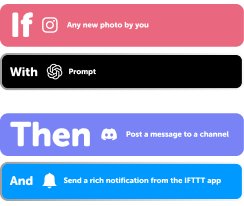
Add multiple actions with exclusive services
Add real-time data and multiple actions for smarter automations -
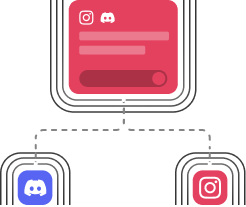
Get access to faster speeds
Get faster updates and more actions with higher rate limits and quicker checks
Core Smart Home and Moonside Light tips, tools, and resources
-
Popular
Celebrating 15 years of IFTTT
-
Smart home
Save on utilities: smart thermostat automations for vacation rentals
-
Smart home
How to turn any light into a motion sensor light for nighttime

-
Smart home
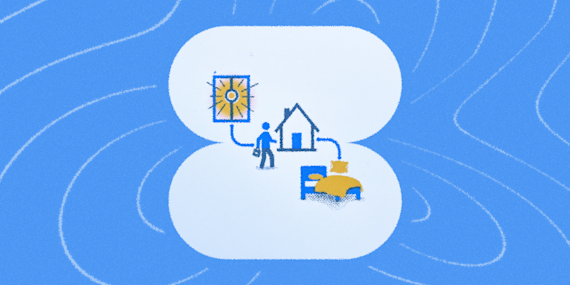
How to get your bedroom ready the moment you get home
-
Lifestyle
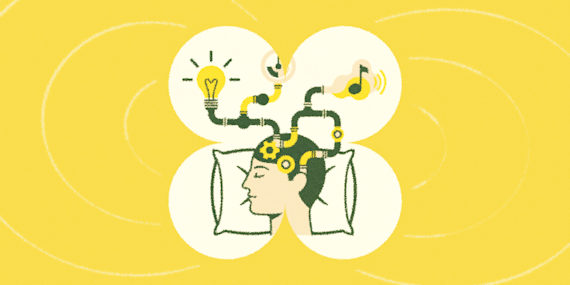
How to automate your bedtime routine with smart lights, thermostat, and music
-
Smart home
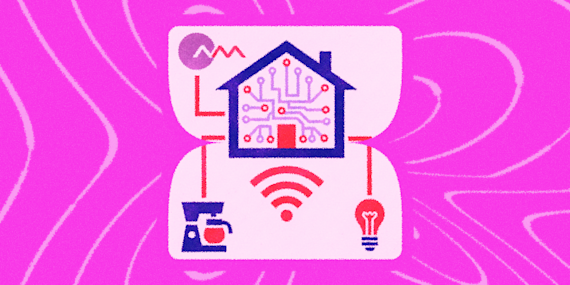
Smart home automation ideas that'll make your life easier
More on Core Smart Home and Moonside Light
About Core Smart Home
At Core Smart Home, we want to realise your dream of perfect living. We aim at devoting our intelligence to your personalised living experience. Delight emotions and living attitude inspire us to create innovative products for your home.
About Moonside Light
With this service, you can control your Moonside Smart Lights via IFTTT. You can set your favorite lighting effects, change light brightness, and much more.