











Turn on Smart Life light every day at 6:30pm
Other popular Date & Time workflows and automations
-
 3.65k
3.65k
-
-
Get a daily IFTTT notification to meditate
28.8k
-
-
Play music on Android at a set daily time
16.2k
-
-
Send an Android SMS at a scheduled time each day
4.74k
-
-
Start Philips Hue color loop on New Year’s midnight
5.42k
-
-
Wake up with Yeelight color change at scheduled time
12.4k
-
-
Send scheduled daily Telegram message
8.75k
-
-
Mute Android ringtone automatically at bedtime
96.9k
-
-
Let Automower sing Happy Birthday
11.7k
-








Automate Date & Time and iOS Shortcuts from your AI assistant
Tell OpenClaw to create Date & Time applets that run on your schedule, with IFTTT MCP.
Set up IFTTT MCP


Create your own Date & Time and iOS Shortcuts workflow
Create custom workflows effortlessly by selecting triggers, queries, and actions. With IFTTT, it's simple: “If this” trigger happens, “then that” action follows. Streamline tasks and save time with automated workflows that work for you.
6 triggers, queries, and actions
Every day at
Polling trigger
Polling Applets run after IFTTT reaches out to the trigger service and finds a new trigger event. These trigger checks occur every hour on Free, every 15 minutes on Starter, and every 5 minutes on Pro and Pro+.
This Trigger fires every single day at a specific time set by you.
Every day of the week at
Polling trigger
Polling Applets run after IFTTT reaches out to the trigger service and finds a new trigger event. These trigger checks occur every hour on Free, every 15 minutes on Starter, and every 5 minutes on Pro and Pro+.
This Trigger fires only on specific days of the week at the time you provide.
Every hour at
Polling trigger
Polling Applets run after IFTTT reaches out to the trigger service and finds a new trigger event. These trigger checks occur every hour on Free, every 15 minutes on Starter, and every 5 minutes on Pro and Pro+.
This Trigger fires once an hour at :00, :15, :30, or :45 minutes past the hour.
Every month on the
Polling trigger
Polling Applets run after IFTTT reaches out to the trigger service and finds a new trigger event. These trigger checks occur every hour on Free, every 15 minutes on Starter, and every 5 minutes on Pro and Pro+.
This Trigger fires every month on the day and time you specify.
Every year on
Polling trigger
Polling Applets run after IFTTT reaches out to the trigger service and finds a new trigger event. These trigger checks occur every hour on Free, every 15 minutes on Starter, and every 5 minutes on Pro and Pro+.
This Trigger fires once a year on the date and time you specify.
Shortcut automation started
Polling trigger
Polling Applets run after IFTTT reaches out to the trigger service and finds a new trigger event. These trigger checks occur every hour on Free, every 15 minutes on Starter, and every 5 minutes on Pro and Pro+.
This trigger fires when an iOS Shortcut automation is started.
Every day at
Polling trigger
Polling Applets run after IFTTT reaches out to the trigger service and finds a new trigger event. These trigger checks occur every hour on Free, every 15 minutes on Starter, and every 5 minutes on Pro and Pro+.
This Trigger fires every single day at a specific time set by you.
Every day of the week at
Polling trigger
Polling Applets run after IFTTT reaches out to the trigger service and finds a new trigger event. These trigger checks occur every hour on Free, every 15 minutes on Starter, and every 5 minutes on Pro and Pro+.
This Trigger fires only on specific days of the week at the time you provide.
Every hour at
Polling trigger
Polling Applets run after IFTTT reaches out to the trigger service and finds a new trigger event. These trigger checks occur every hour on Free, every 15 minutes on Starter, and every 5 minutes on Pro and Pro+.
This Trigger fires once an hour at :00, :15, :30, or :45 minutes past the hour.
Every month on the
Polling trigger
Polling Applets run after IFTTT reaches out to the trigger service and finds a new trigger event. These trigger checks occur every hour on Free, every 15 minutes on Starter, and every 5 minutes on Pro and Pro+.
This Trigger fires every month on the day and time you specify.
Every year on
Polling trigger
Polling Applets run after IFTTT reaches out to the trigger service and finds a new trigger event. These trigger checks occur every hour on Free, every 15 minutes on Starter, and every 5 minutes on Pro and Pro+.
This Trigger fires once a year on the date and time you specify.
Shortcut automation started
Polling trigger
Polling Applets run after IFTTT reaches out to the trigger service and finds a new trigger event. These trigger checks occur every hour on Free, every 15 minutes on Starter, and every 5 minutes on Pro and Pro+.
This trigger fires when an iOS Shortcut automation is started.
GET STARTED
How to connect to a Date & Time automation
Find an Applet using Date & Time and iOS Shortcuts
Find an automation to connect to, or create your own!Connect IFTTT to your accounts
Securely connect the Applet services to your respective accounts.Finalize and customize your Applet
Review trigger and action settings, and click connect. Simple as that!Upgrade your automations with
-
Connect to more Applets
Connect up to 20 automations with Pro, and unlimited automations with Pro+ -
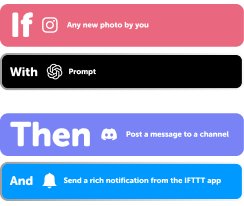
Add multiple actions with exclusive services
Add real-time data and multiple actions for smarter automations -
Get access to faster speeds
Get faster updates and more actions with higher rate limits and quicker checks
Date & Time and iOS Shortcuts tips, tools, and resources
-
Productivity
Building custom notification automations with IFTTT
-
Popular
Celebrating 15 years of IFTTT
-
Popular
What your automations say about your aesthetic
-
Productivity
6 calendar automations your week needs

-
Business
20 business tools to automatically run and scale your business

-
Popular
How to use IFTTT MCP with Claude
-
Business
10 new tools for the work that keeps your business moving
-
Popular
How to connect your first Applet

-
Popular
Six ways to automate these annoying tasks
More on Date & Time and iOS Shortcuts
About Date & Time
Date & Time and IFTTT let you schedule automations to run on your own schedule, from hourly to yearly.
About iOS Shortcuts
iOS Shortcuts and IFTTT let you trigger your custom shortcuts from IFTTT automations.